ArcGIS Desktop

  • Dokumentation
  • Support

  • My Profile
  • Hilfe
  • Sign Out
ArcGIS Desktop

ArcGIS Online

Die Mapping-Plattform für Ihre Organisation

ArcGIS Desktop

Ein vollständiges professionelles GIS

ArcGIS Enterprise

GIS in Ihrem Unternehmen

ArcGIS for Developers

Werkzeuge zum Erstellen standortbezogener Apps

ArcGIS Solutions

Kostenlose Karten- und App-Vorlagen für Ihre Branche

ArcGIS Marketplace

Rufen Sie Apps und Daten für Ihre Organisation ab.

  • Dokumentation
  • Support
Esri
  • Anmelden
user
  • Eigenes Profil
  • Abmelden

Help

  • Startseite
  • Erste Schritte
  • Karte
  • Analysieren
  • Verwalten von Daten
  • Werkzeuge
  • Mehr...

Working with data items

Data items can be used to populate the table with information. Clicking Data Items on the Data Source tab causes the Data Items dialog box to appear.

The items that display in the list are those that have satisfied the filters defined on the Data Filters dialog box.

You can view the items on the Data Items dialog box as well as manage the table records.

In addition, you can also add and sort table fields from the Data Items dialog box the same way you are able to from the Data Filters dialog box.

  1. Start ArcMap.
  2. If necessary, load data in the map.
  3. Verify that you are in layout view if necessary.
  4. Right-click the graphic table element and click Properties.

    The Table Properties dialog box appears.

  5. If necessary, click the Data Source tab.

    The Data Source tab appears.
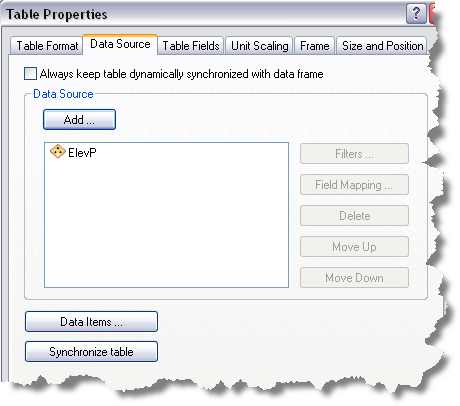
    Data Source tab
  6. Click Data Items on the Data Source dialog box.

    The Data Items dialog box appears.

    Data Items dialog box
    Hinweis:

    The Show Field Aliases check box will display the field alias in the dialog box as you create a graphic table element; it will not display the field alias on the graphic table element itself.

  7. Check the Show Field Aliases check box if you want field alias names to display in the table.
  8. To limit the number of items you want displayed, type the maximum number of data items you want returned in the Maximum number of data items text box.

    Vorsicht:

    The value set in this text box overrides any value set within a filter, including a limit filter. Set the Maximum number of data items to -1 to return all values within a filter or to return the maximum number of items set within a limit filter.

  9. Perform any of the following as needed:
    • To copy a cell, right-click an operator or filter type cell and click Copy Cell.
    • To copy a row, right-click a row and click Copy Selected Row.
    • To delete a row, right-click a row and click Delete.
    • To sort a row, right-click a row and click Move Up or Move Down.
  10. Click OK.

    The Table Properties dialog box appears.

  11. Click OK.

Verwandte Themen

  • What is a graphic table element?
  • A quick tour of the graphic table element
  • What is data source filtering?

ArcGIS Desktop

  • Startseite
  • Dokumentation
  • Support

ArcGIS Plattform

  • ArcGIS Online
  • ArcGIS Desktop
  • ArcGIS Enterprise
  • ArcGIS for Developers
  • ArcGIS Solutions
  • ArcGIS Marketplace

Über Esri

  • Über uns
  • Karriere
  • Insider-Blog
  • User Conference
  • Developer Summit
Esri
Wir sind an Ihrer Meinung interessiert.
Copyright © 2017 Esri. | Datenschutz | Rechtliches