The Create Airspace Areas tool allows you to associate vertical (flight level) information from an airspace to two-dimensional features. Labeling these features with vertical information allows the display of three-dimensional information on a two-dimensional chart.
Airspace areas are the division of airspace features that have the exact same horizontal extent. To generate airspace areas, the Create Airspace Areas tool uses the following general process:
- Select airspace features that fall within an instance from a product library.
- Locate records in the AirspaceAssociation table that are used to create airspace area features.
- Transfer geometry to Same Extent features and union non-Same Extent features.
- Select all overlapping airspace features.
- Union airspace features. This creates one or more coincident geometries stacked upon one another (features with identical horizontal extent).
- Locate adjacent Airspace features that would receive the same label and merge the features together, writing the vertical information from fields Ident_Txt, Name_Txt, DistVertUpper_Val, and DistVertLower_Val (or any other field that is different between the features) into the MultiAirspace_Txt field.
- Copy the merged geometry onto the AirspaceArea feature.
- Start ArcMap.
- Ensure that the production properties are set correctly.
Properties include the product library workspace, production database workspace, Data Model Version, and Instances Maintained. The Data Model Version must be set to an AIS-based data model.
- If necessary, load a product into ArcMap.
- On the main menu, click Customize > Toolbars > Aviation Data Management.
- Click the Create Airspace Areas button
 on the Aviation Data Management toolbar.
The Create Airspace Areas dialog box appears.
- In the Instances to Process list, expand each node in the tree view until you find the instance against which the tool will run.
- Check the check box next to the instance name.
- Click the Preference drop-down arrow and choose a preference name.
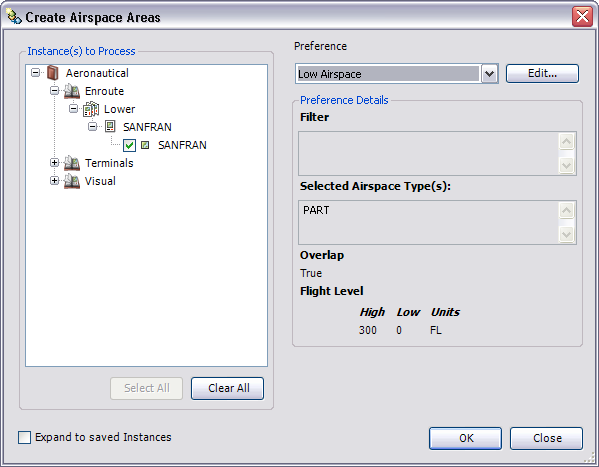
- To modify the airspace areas preference, click Edit.
- Click OK to build airspace areas.