ArcGIS Desktop

  • ArcGIS Pro
  • ArcMap

  • My Profile
  • Hilfe
  • Sign Out
ArcGIS Desktop

ArcGIS Online

Die Mapping-Plattform für Ihre Organisation

ArcGIS Desktop

Ein vollständiges professionelles GIS

ArcGIS Enterprise

GIS in Ihrem Unternehmen

ArcGIS Developers

Werkzeuge zum Erstellen standortbezogener Apps

ArcGIS Solutions

Kostenlose Karten- und App-Vorlagen für Ihre Branche

ArcGIS Marketplace

Rufen Sie Apps und Daten für Ihre Organisation ab.

  • Dokumentation
  • Support
Esri
  • Anmelden
user
  • Eigenes Profil
  • Abmelden

ArcMap

  • Startseite
  • Erste Schritte
  • Karte
  • Analysieren
  • Verwalten von Daten
  • Werkzeuge
  • Erweiterungen

Creating the Holding Pattern Entry Diagram

The Holding Pattern Entry Diagram (HPED) tool creates holding pattern entry diagrams for designated holding pattern features in the current procedure.

  1. Start ArcMap.
  2. Ensure that the data model version is set to the AIS Charting model under the Production Database node in the Product Library window.
  3. If AIS Charting has been set as the data model version, it appears in boldface on the Product Library window under Production Database. If it is not, right-click the AIS Charting data model and click Set As Active.
  4. Ensure that your chart's data frame is set to the appropriate instance by right-clicking the data frame, selecting Properties, and clicking the Product Library tab.
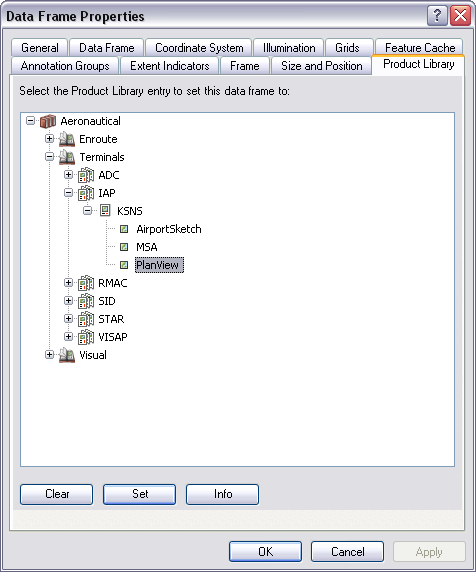
    Data Frame Properties dialog box

  5. Click OK.

    Hinweis:

    The creation of an HPED is based on the data in the production database and the instance designated on the Data Frame Properties dialog box. To designate a holding pattern feature for HPED creation, change the HPEntry_Code field on the holding pattern ProcedureLeg_C feature to Yes. The HPED tool will create an entry diagram for that procedure leg.

  6. On the main menu, click View > Layout View.
  7. On the main menu, click Customize > Toolbars > Aviation Terminal Procedure.
  8. Click the Holding Pattern Entry Diagram button Holding Pattern Entry Diagram on the Aviation Terminal Procedures toolbar.

    Tipp:

    If information on the procedure where the HPED resides changes, and that information affects the HPED, you can regenerate it by clicking the Holding Pattern Entry Diagram button again.

ArcGIS Desktop

  • Startseite
  • Dokumentation
  • Support

ArcGIS

  • ArcGIS Online
  • ArcGIS Desktop
  • ArcGIS Enterprise
  • ArcGIS
  • ArcGIS Developer
  • ArcGIS Solutions
  • ArcGIS Marketplace

Über Esri

  • Über uns
  • Karriere
  • Esri Blog
  • User Conference
  • Developer Summit
Esri
Wir sind an Ihrer Meinung interessiert.
Copyright © 2022 Esri. | Datenschutz | Rechtliches