ArcGIS Desktop

  • ArcGIS Pro
  • ArcMap

  • My Profile
  • Hilfe
  • Sign Out
ArcGIS Desktop

ArcGIS Online

Die Mapping-Plattform für Ihre Organisation

ArcGIS Desktop

Ein vollständiges professionelles GIS

ArcGIS Enterprise

GIS in Ihrem Unternehmen

ArcGIS Developers

Werkzeuge zum Erstellen standortbezogener Apps

ArcGIS Solutions

Kostenlose Karten- und App-Vorlagen für Ihre Branche

ArcGIS Marketplace

Rufen Sie Apps und Daten für Ihre Organisation ab.

  • Dokumentation
  • Support
Esri
  • Anmelden
user
  • Eigenes Profil
  • Abmelden

ArcMap

  • Startseite
  • Erste Schritte
  • Karte
  • Analysieren
  • Verwalten von Daten
  • Werkzeuge
  • Erweiterungen

Editing annotation

The Edit Annotation tool is the best tool to access the shortcut menu containing the annotation editing options. Selecting annotation with the tool and right-clicking shows the shortcut menu. The Abbreviate and Anno Resize options have additional options available.

For annotation abbreviation, the options listed are based on the values in a domain (Code_LabelStatus), which is associated with the LabelStatus_Code field in the cartographic feature class. The values in that domain show up as abbreviation options, and the result is a change in the LabelStatus_Code attribute value and an abbreviated annotation feature.

Learn more about creating annotation with an advanced callout and multiple text elements

  1. Start ArcMap.
  2. On the main menu, click Customize > Toolbars > Aviation Editing.
  3. Click the Production Start Editing button Production Start Editing on the Aviation Editing toolbar.

    Hinweis:

    The Manage Features and Create Attributes, Update Attributes, or Metadata Attributes windows automatically appear when you start an edit session using the Production Start Editing tool.

    Tipp:

    If the Create Attributes, Update Attributes, or Metadata Attributes window does not appear when you start an edit session, click the Show/Hide Attributes button Show/Hide Attributes on the Manage Features window.

  4. On the main menu, click Customize > Toolbars > Aviation Annotation.
  5. Click the Edit Annotation tool Edit Annotation on the Aviation Annotation toolbar.
  6. Click an annotation feature to select it.
  7. Right-click the annotation feature and choose a function in the shortcut menu.
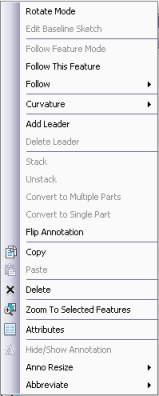
    Shortcut menu for editing annotation

ArcGIS Desktop

  • Startseite
  • Dokumentation
  • Support

ArcGIS

  • ArcGIS Online
  • ArcGIS Desktop
  • ArcGIS Enterprise
  • ArcGIS
  • ArcGIS Developer
  • ArcGIS Solutions
  • ArcGIS Marketplace

Über Esri

  • Über uns
  • Karriere
  • Esri Blog
  • User Conference
  • Developer Summit
Esri
Wir sind an Ihrer Meinung interessiert.
Copyright © 2022 Esri. | Datenschutz | Rechtliches