Mit der Production Mapping-Lizenz verfügbar.
When you have several subtypes in your data model, it can be more useful to load them each as a layer instead of loading the feature class and symbolizing the subtypes using categories. The Add Subtypes As Layers tool allows you to add all the subtypes in the selected dataset as individual layers. This means that every subtype in your dataset has a definition query created for it and is loaded as an individual layer in the table of contents, regardless of whether it contains data.
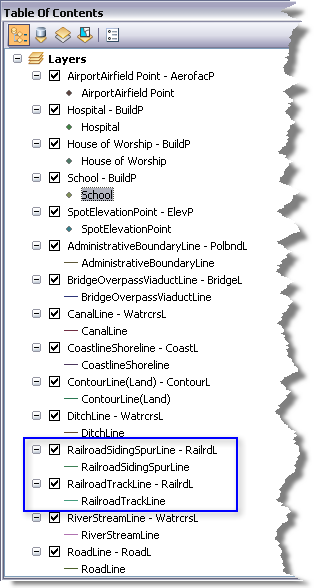
Each subtype is listed as [subtype] - [feature class], then the subtype appears again next to the symbol. For instance, in the example below, most of the feature classes only have one subtype per feature class, but the RailrdL feature class has symbols for two subtypes: RailroadTrackLine and RailroadSidingSpurLine.
- Start ArcMap.
- On the main menu, click Customize > Toolbars > Production TOC Manager.
- Click the drop-down arrow next to the Add Populated Data button
 and click one of the following:
To add all subtypes as layers, including those that do not contain data
Click Add Subtypes.
To only add subtypes with data as layers
Click Add Populated Subtypes.
The Add Data dialog box appears.
- Navigate to the datasets and feature classes you want to load.
- Click Add.
The subtypes are added to the table of contents as individual layers and are displayed in the map.