Data model information is provided as an Microsoft Excel spreadsheet for most of the data models included with ArcGIS Defense Mapping. This is a format not usually accepted in ArcCatalog for data models; they are accepted as Microsoft Access databases or XML files.
The Geodatabase Builder tool allows you to create a personal or file geodatabase from an Excel spreadsheet. The spreadsheet used with the tool should contain all the required information regarding feature classes, feature datasets, and domains.
Learn more about the Excel files used to create geodatabases
- Start ArcCatalog.
- On the main menu, click Customize > Toolbars > Defense Mapping.
- Click the Geodatabase Builder button
 on the Defense Mapping toolbar.
The Geodatabase Builder dialog box appears.
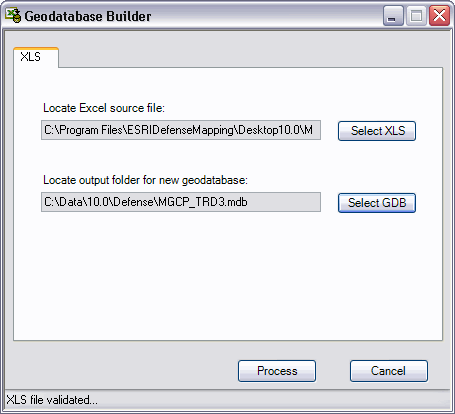
- If necessary, click the Excel to GDB tab.
- Click Select XLS.
- Browse to the Excel file to be used to build your geodatabase.
The Excel files can be found in the <Defense Mapping installation location>\ESRIDefenseMapping\Desktop<version>\[ProductName]\Schema\XLS directory.
- Klicken Sie auf Hinzufügen.
- Click Select GDB.
- Browse to the directory where you want to create the new geodatabase.
- Type a name for the geodatabase in the File name text box.
- Click Save.
The Geodatabase Builder dialog box appears.
- Click Process.
The geodatabase is created using the designated Excel file.
When processing is complete, the Excel to Geodatabase message appears.
- Click Yes to review the log file or No to close the message.