ArcGIS Desktop

  • ArcGIS Pro
  • ArcMap

  • My Profile
  • Hilfe
  • Sign Out
ArcGIS Desktop

ArcGIS Online

Die Mapping-Plattform für Ihre Organisation

ArcGIS Desktop

Ein vollständiges professionelles GIS

ArcGIS Enterprise

GIS in Ihrem Unternehmen

ArcGIS Developers

Werkzeuge zum Erstellen standortbezogener Apps

ArcGIS Solutions

Kostenlose Karten- und App-Vorlagen für Ihre Branche

ArcGIS Marketplace

Rufen Sie Apps und Daten für Ihre Organisation ab.

  • Dokumentation
  • Support
Esri
  • Anmelden
user
  • Eigenes Profil
  • Abmelden

ArcMap

  • Startseite
  • Erste Schritte
  • Karte
  • Analysieren
  • Verwalten von Daten
  • Werkzeuge
  • Erweiterungen

Linking maps by scale

The default view of the Split View window is the visual extent of the ArcMap data frame. The Link Maps by Scale tool links the two views by scale so that the scale remains the same in both windows if the Split View window is resized.
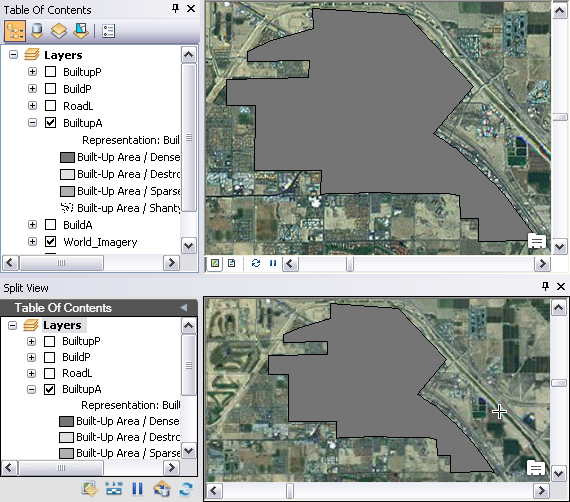
View that is linked by extent
View that is linked by scale
  1. Start ArcMap.
  2. On the main menu, click Customize > Toolbars > Defense Mapping.
  3. Click the Split View button Split View on the Defense Mapping toolbar.

    The Split View window appears and contains all the layers in the Table Of Contents window.

    ArcMap and Split View windows
    Tipp:

    You can dock the window anywhere inside of ArcMap or move it to another monitor based on your setup needs.

  4. Click the Link Maps By Scale button Link Maps By Scale on the Split View window.

    The Split View window draws the layers based on the scale of the data frame.

ArcGIS Desktop

  • Startseite
  • Dokumentation
  • Support

ArcGIS

  • ArcGIS Online
  • ArcGIS Desktop
  • ArcGIS Enterprise
  • ArcGIS
  • ArcGIS Developer
  • ArcGIS Solutions
  • ArcGIS Marketplace

Über Esri

  • Über uns
  • Karriere
  • Esri Blog
  • User Conference
  • Developer Summit
Esri
Wir sind an Ihrer Meinung interessiert.
Copyright © 2021 Esri. | Datenschutz | Rechtliches