Mit der Production Mapping-Lizenz verfügbar.
Choosing the Has value assigned from expression option on the Field Mapping dialog box allows you to assign a value using an expression. Clicking Expression displays the Expression Builder dialog box.

The list in the Available Fields area of the Expression Builder dialog box displays the data source fields that can be selected for mapping. The options under Available Properties allow you to assign one or more of the preconfigured properties listed. These properties represent values that are set and maintained outside the data source.
- Verify that you are in layout view if necessary.
- Right-click the graphic table element and click Properties.
The Table Properties dialog box appears.
- If necessary, click the Data Source tab.
The Data Source tab appears.
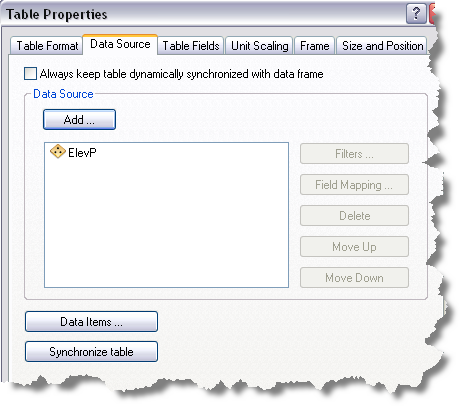
- Click a data source in the Data Source list on the Data Source dialog box.
The selected data source is highlighted, and the Field Mapping button becomes available.
- Click Field Mapping.
The Field Mapping dialog box appears.

- Check the Display coded value descriptions check box if you want coded value descriptions to display in the table.
- Click the Field drop-down arrow and choose the field you want to map.
- Check the Show Field Aliases check box if you want field alias names to display in your table.
- Click the Has value assigned from expression option.
The Expression button becomes available.
- Click Expression.
The Expression Builder dialog box appears.
- If you want to create an expression, choose the data source field you want to use from the Available Fields list.
- Choose the property to use from the Available Properties list.
- Workspace_Type—The type of the workspace as an object
- Workspace_Type_String—The type of the workspace as a string
- Workspace_Browse_Name—The browse name of the WorkspaceName
- Workspace_Path_Name—The path of the WorkspaceName
- Dataframe_Name—The name of the map
- Dataframe_SpatialReference_Name—The spatial reference of the map
- Dataframe_SpatialReference_LinearUnit—Data frame linear units
- Dataframe_Spatial_Reference_XY—The x- and y-coordinates
- Dataframe_SpatialReference_Z—The z-attribute
- FeatureLayer_Name—The layer name
- FeatureClass_Name—The name for the feature class
- FeatureClass_Alias—The alias name for the feature class
- Feature_Type—The type of the feature as an object
- Feature_Type_String—The type of the feature as a string
- Feature_Geometry_Type—A reference to the geometry of the default shape for the feature
- Feature_Geometry_Type_String—The name for the geometry of the default shape for the feature
- Feature_SpatialReference_Name—The feature's spatial reference name
- Feature_SpatialReference_LinearUnit—The feature's spatial reference linear unit
- Feature_SpatialReference_XY—The x,y coordinate pair of the feature
- Feature_SpatialReference_Z—The z-coordinate of the feature
- Feature_Symbol_Label—The Symbol label of the feature
- Object_Global_ID—The object global ID value
For a complete description of these properties, refer to the ArcGIS Developer Library.
- Check the Advanced Mode check box if you want to enable VBScript in the window.
- Click Verify to check the validity of the expression you have created.
The Expression Builder Verification message box appears.
- Klicken Sie auf OK.
- Click Save to save the expression.
- Navigate to the location where you want to save the expression.
- Klicken Sie auf OK.
- Click Load if you want to use a previously created and saved expression.
- Navigate to the location of the expression you want to use.
- Select the expression you want to use.
- Click Open.
- Check the Display coded value descriptions check box if you want coded value descriptions to display in the table.
- Klicken Sie auf OK.
The Field Mapping dialog box appears.
- Click OK.
The Table Properties dialog box appears.
- Klicken Sie auf OK.