Mit der Standard- oder Advanced-Lizenz verfügbar.
Mit der Production Mapping-Lizenz verfügbar.
You can control the way coordinates appear on the Input tab in the Coordinates area of the Feature Builder window. Choices are provided for both geographic and projected coordinate systems.
For geographic coordinate systems, there are several ways to customize the appearance of coordinates:
- The display order on the Input tab can be changed so the Latitude column appears on the left instead of the Longitude column. The latitude range contains the values that are considered valid for the map's horizontal extent. The longitude range contains the values that are considered valid for the map's vertical extent.
- You can choose the format used to display the coordinates such as degrees, minutes, seconds; decimal minutes; decimal degrees or variations of the types. The format you choose determines how the individual coordinates appear on the Input tab in the Coordinates area.
- The precision used for coordinates can be adjusted so it is greater than two places beyond the decimal point.
- The minimum and maximum ranges for latitude and longitude can be defined so that only values within that range are accepted.
For projected coordinate systems, you can choose a format for displaying the coordinates. You can display the coordinates using northing and easting, or you can choose to see the raw coordinates, which are coordinates without any formatting applied. The units used with a projected coordinate system match the map units set for your data frame on the General tab on the Data Frame Properties dialog box.
- Start ArcMap.
- On the menu bar, click Customize > Toolbars > Production Feature Builder.
- Click the Feature Builder button
 on the Production Feature Builder toolbar.
The Feature Builder window appears.
- Click the Settings button
 at the top of the Feature Builder window.
The Feature Builder Settings dialog box appears.
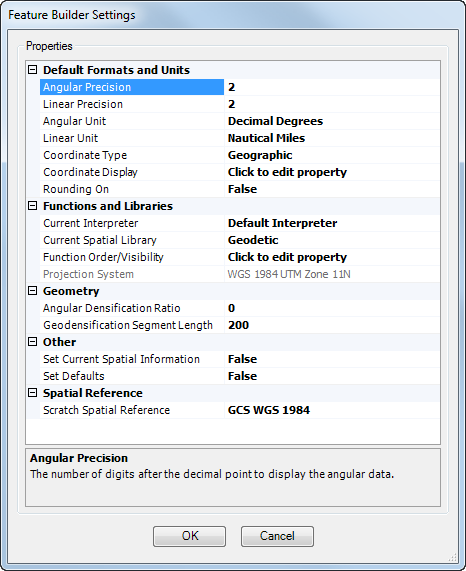
- Click the cell next to Coordinate Display, then click the ellipsis (...) that appears.
The Coordinate Display dialog box appears.

If you are using a geographic coordinate system, proceed to step 6. If you are using a projected coordinate system, proceed to step 7.
- If you are using a geographic coordinate system, perform the following substeps in the Geographic Coordinates area:
- Click the Display Format drop-down arrow and choose a coordinate format to use.
- Type a minimum value for the map extent in the Min text box in the Latitude Range area.
- Type a maximum value for the map extent in the Max text box in the Latitude Range area.
- Type a minimum value for the map extent in the Min text box in the Longitude Range area.
- Type a maximum value for the map extent in the Max text box in the Longitude Range area.
- If you are using a projected coordinate system, perform the following substeps in the Projected Coordinates area:
- Click the Display Format drop-down arrow and choose a coordinate format to use.
- Click the Display Order drop-down arrow and choose an option for displaying the longitude and latitude coordinates.
You can choose to have longitude coordinates shown first or latitude.
- Type the number of digits you want to come after the decimal point in the Display Precision text box.
The number of integers represent how precisely you want the coordinates to be displayed in the status bar.
- Klicken Sie auf OK.