ArcGIS Desktop

  • ArcGIS Pro
  • ArcMap

  • My Profile
  • Hilfe
  • Sign Out
ArcGIS Desktop

ArcGIS Online

Die Mapping-Plattform für Ihre Organisation

ArcGIS Desktop

Ein vollständiges professionelles GIS

ArcGIS Enterprise

GIS in Ihrem Unternehmen

ArcGIS Developers

Werkzeuge zum Erstellen standortbezogener Apps

ArcGIS Solutions

Kostenlose Karten- und App-Vorlagen für Ihre Branche

ArcGIS Marketplace

Rufen Sie Apps und Daten für Ihre Organisation ab.

  • Dokumentation
  • Support
Esri
  • Anmelden
user
  • Eigenes Profil
  • Abmelden

ArcMap

  • Startseite
  • Erste Schritte
  • Karte
  • Analysieren
  • Verwalten von Daten
  • Werkzeuge
  • Erweiterungen

Populating the z-value using an attribute value

Mit der Production Mapping-Lizenz verfügbar.

The Populate Z For Selected Feature(s) tool can populate z-values using the value from an attribute on a feature class. For instance, if there is currently an attribute, such as ZV2, that contains the z-values for the features, you can use that attribute to populate the z-values for the selected features.

When the z-values are updated, all current values are overwritten by the attribute values.

  1. Start ArcMap.
  2. Load data in the map if necessary.
  3. On the main menu, click Customize > Toolbars > Production Editing.
  4. On the main menu, click Customize > Toolbars > Production Z Management.
  5. Click the Production Start Editing button Production Start Editing on the Production Editing toolbar.

    Hinweis:

    The Manage Features and Create Attributes, Update Attributes, or Metadata Attributes windows automatically appear when you start an edit session using the Production Start Editing tool.

    Tipp:

    If the Create Attributes, Update Attributes, or Metadata Attributes window does not appear when you start an edit session, click the Show/Hide Attributes button Show/Hide Attributes on the Manage Features window.

  6. Select the features whose z-values you want to populate using the Edit tool Edit Tool on the Production Editing toolbar.
  7. Click the Populate Z For Selected Feature(s) button Populate Z For Selected Feature(s) on the Production Z Management toolbar.

    The Z Populate dialog box appears.

  8. Choose the Populate Zs from attribute option.
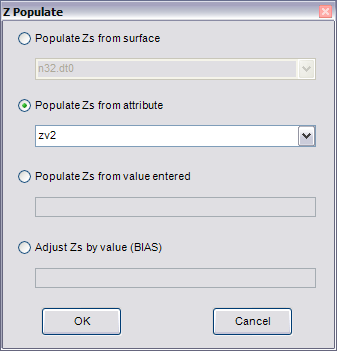
    Z Populate dialog box with the Populate Zs from attribute option selected

  9. Click the Populate Zs from attribute drop-down arrow and choose the attribute that contains the value you want to use as the z-value .

    The drop-down list contains fields of type Long, Double, and Text.

  10. Click OK.

    A message appears that indicates how many features were populated using the Populate Z for Selected Features tool.

  11. Click OK.

    Tipp:

    You can view the updated z-value in the Sketch Properties window.

Verwandte Themen

  • Setting the z-value to be used for new features
  • Ways of populating z-values during an edit session

ArcGIS Desktop

  • Startseite
  • Dokumentation
  • Support

ArcGIS

  • ArcGIS Online
  • ArcGIS Desktop
  • ArcGIS Enterprise
  • ArcGIS
  • ArcGIS Developer
  • ArcGIS Solutions
  • ArcGIS Marketplace

Über Esri

  • Über uns
  • Karriere
  • Esri Blog
  • User Conference
  • Developer Summit
Esri
Wir sind an Ihrer Meinung interessiert.
Copyright © 2021 Esri. | Datenschutz | Rechtliches