ArcGIS Desktop

  • ArcGIS Pro
  • ArcMap

  • My Profile
  • Hilfe
  • Sign Out
ArcGIS Desktop

ArcGIS Online

Die Mapping-Plattform für Ihre Organisation

ArcGIS Desktop

Ein vollständiges professionelles GIS

ArcGIS Enterprise

GIS in Ihrem Unternehmen

ArcGIS Developers

Werkzeuge zum Erstellen standortbezogener Apps

ArcGIS Solutions

Kostenlose Karten- und App-Vorlagen für Ihre Branche

ArcGIS Marketplace

Rufen Sie Apps und Daten für Ihre Organisation ab.

  • Dokumentation
  • Support
Esri
  • Anmelden
user
  • Eigenes Profil
  • Abmelden

ArcMap

  • Startseite
  • Erste Schritte
  • Karte
  • Analysieren
  • Verwalten von Daten
  • Werkzeuge
  • Erweiterungen

Setting the alias name

Mit der Production Mapping-Lizenz verfügbar.

The Table Fields tab allows you define an alias name for the table field.

  1. Start ArcMap.
  2. Verify that you are in layout view if necessary.
  3. Right-click the graphic table element and click Properties.

    The Table Properties dialog box appears.

  4. If necessary, click the Table Fields tab.

    The Table Fields tab appears.
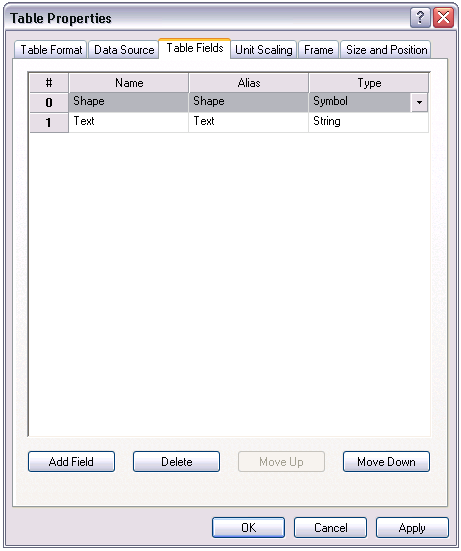
    Table Fields tab
  5. Right-click the alias name you want to modify in the Alias column and click Set Alias Name.
  6. Type the alias name you want to use.
  7. Press ENTER.

ArcGIS Desktop

  • Startseite
  • Dokumentation
  • Support

ArcGIS

  • ArcGIS Online
  • ArcGIS Desktop
  • ArcGIS Enterprise
  • ArcGIS
  • ArcGIS Developer
  • ArcGIS Solutions
  • ArcGIS Marketplace

Über Esri

  • Über uns
  • Karriere
  • Esri Blog
  • User Conference
  • Developer Summit
Esri
Wir sind an Ihrer Meinung interessiert.
Copyright © 2021 Esri. | Datenschutz | Rechtliches