Associate workflows with map documents for the current user by using Associate Workflow with MXD command from the Task Assistant window context menu. This method allows you to associate one or more saved task assistant workflows with either the current map document or another saved map document. Once workflows and map documents are linked to each other, the associations are stored in the TaskAssistantUserProfile.xml file located in the <user application data>\ESRI\TAM10.8\Data directory.
- Start ArcMap.
- If necessary, click the Task Assistant button
 on the Task Manager toolbar to display the Task Assistant window.
 - Open a task assistant workflow.
- Right-click in the Task Assistant window and click Associate Workflow with MXD.
The Associate Workflow with MXD dialog box appears with the name of the current map document displayed in the MXD text box.
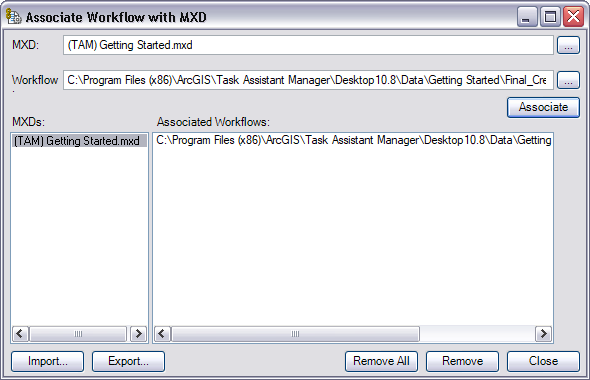
The paths shown are for a 64-bit operating system. They will be different for a 32-bit operating system. - You can proceed using the default map document or click the ellipsis (...) next to the MXD text box and navigate to the MXD you want to use.
- Type a workflow file name in the Workflow text box or click the ellipsis (...) next to the Workflow text box and browse to and select the workflow file you want to use.
- Click Associate.
- Repeat steps 6 through 7 for each task assistant workflow to associate with the MXD.
- Klicken Sie auf Schließen.