Mit der Standard- oder Advanced-Lizenz verfügbar.
Mit der Workflow Manager-Lizenz verfügbar.
Several job query containers and queries are present by default in ArcGIS Workflow Manager (Classic) Desktop. These include General Queries (All Jobs query and Unassigned Jobs query), Group Queries (Jobs assigned to my groups and Jobs with steps assigned to my groups), and Personal Queries (Jobs assigned to me and Jobs with steps assigned to me). Job queries in these folders cannot be edited but can be viewed via the shortcut menu.
The User Queries container allows you to create and edit personal job queries. A context menu displays options to create new query containers and job queries and edit or delete existing queries and containers.
- Click the plus (+) or minus (-) sign to expand or collapse the tree view.
- Right-click a public query and click View to view the query command.
The Public Queries can be viewed but not edited.
User Queries is a container where you can create personal query containers and job queries.
- Right-click the User Queries item, point to New, then click Container or Query.
Selecting Query will open the Define Job Query dialog box.
- Enter a name on the General tab.

- On the Fields tab, select the fields you want to report on by double-clicking or dragging them to the list on the right.

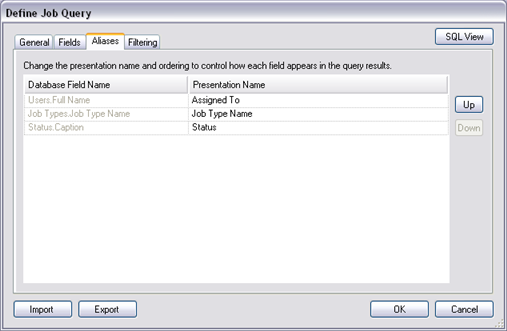
- After selecting the fields, modify how they will be presented to your users on the Aliases tab.
- On the Filtering tab, you can define the filter you want to apply to your query.
For example, you may want to display high-priority jobs.

- Click SQL View to view and/or modify the query using the query builder.

- Click OK.