Color separation is a process in which a map or chart's colors are analyzed and separated according to unique color definitions. The primary methods for separating colors are
- Process color (CMYK)—Cyan, magenta, yellow, and black
- Spot—Named colors
The Convert To Spot EPS File tool analyzes the CMYK colors in an encapsulated PostScript (.eps) file created by ArcMap and generates another .eps file, which replaces the CMYK colors with named colors through specified color mapping. The newly created .eps file with the named colors has _spot appended to its name.
You can also batch process .eps files using the Convert To Spot EPS File tool. This allows you to create color-mapped .eps files for a series of map sheets that use the same set of colors.
- Start ArcMap.
- If necessary, load data in the map.
- Verify that you have generated a CMYK color space .eps file from ArcMap.
- Add the Convert To Spot EPS File tool by doing the following:
- On the main menu, click Customize > Customize Mode.
The Customize dialog box appears.
- Click the Commands tab.
- In the Categories list, click Production Cartography.
- From the Commands list, click and drag the Convert To Spot EPS File tool
 onto an existing menu or toolbar.
- On the main menu, click Customize > Customize Mode.
- Click the Convert To Spot EPS File button .
The SeeSpotColor dialog box appears.
- Click the Open button
 next to the Input EPS file text box.
The Open an ArcMap EPS file dialog box appears.
- Browse to your .eps file.
- Click Open.
The SeeSpotColor dialog box appears.
- If you have a Spot Color Set file to use, click the Open button next to the Input Spot Color Set (.scs) file (optional) text box.
The Open Spot Color Set (SCS) file dialog box appears.
- Browse to your .scs file.
- Click Open.
The SeeSpotColor dialog box appears.
- Click Analyze.
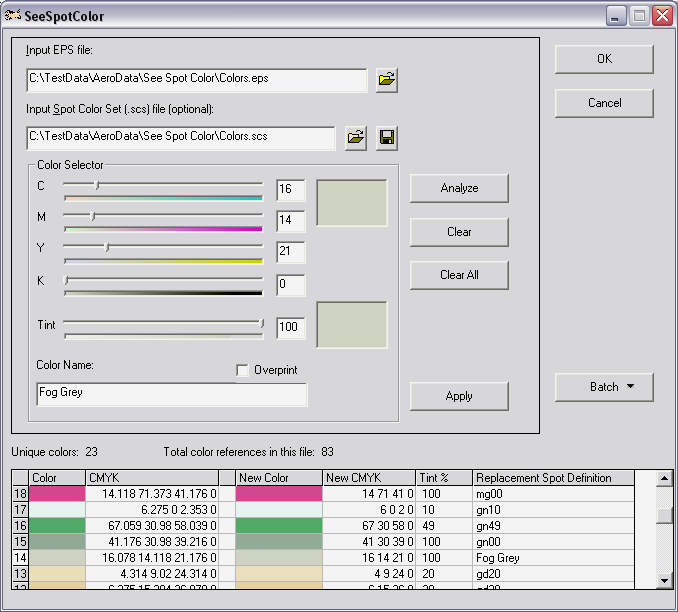
- Scroll through the list of CMYK color definitions found and their replacement CMYK colors.
- If necessary, click the CMYK value for the color definition from the list to enable the Overprint check box.
- Check the Overprint check box if you want the selected color to overprint symbols and colors drawn underneath it on the map sheet, producing a mix of colors in the areas that overlap.
- Add colors to the .scs file if necessary.
If there is a color that is not included in the .scs file, this will need to be added before the .eps file will successfully color map.
- Click OK.
- Navigate to the directory where you want to store the color-mapped .eps file.
The file has _spot appended to its name.
- Click Save.
The color-mapped .eps file is generated.
- Click Cancel to close the SeeSpotColor dialog box.
The _spot.eps file can now be sent to the printer or distilled to a PDF file.