Block ranges represent the line segments that determine the address range for the block within the jurisdiction of a local government. A block range typically goes between intersections and is associated with a route. The Add Block Range widget allows you to add a new block range or edit an existing block range.
- Open a web browser and browse to the Roadway Characteristics Editor.
- On the Edit tab, in the Edit Events group, click Block Range.

The Add Block Range dialog box appears.
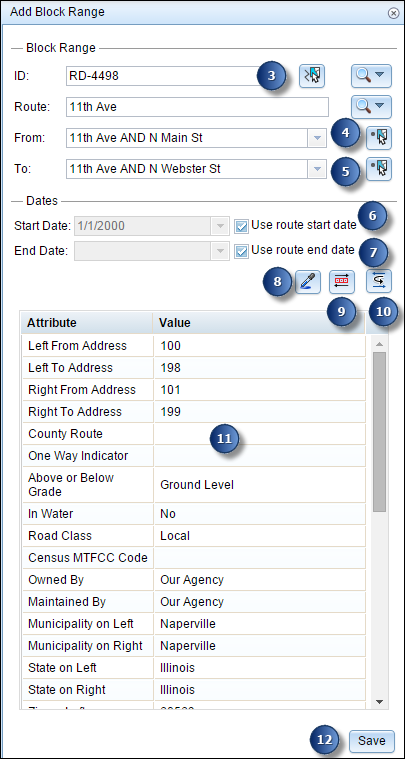
- Click the Select a Block Range button
 and click the route where you want to add or edit the block range.
When adding the new block range, the widget's dialog box is populated with the following information:
- Route ID—The route ID where the block range will be located.
- From Intersection—The intersection that is located at the start of the block range and is present on the same route will be populated in the drop-down list. If more than one applicable intersection exists, you can choose one from the drop-down list. If it's the route start and no other intersection is present, the text Route Start is displayed.
- To Intersection—The intersection that is located at the end of the block range and is present on the same route will be populated in the drop-down list. If more than one applicable intersection exists, you can choose one from the drop-down list. If it's the route end and no other intersection is present, the text Route End is displayed.
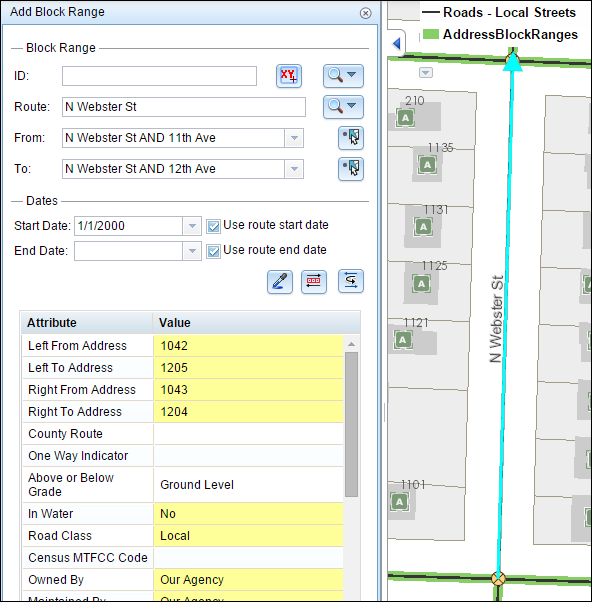
- Address range attributes—The fields with address range attributes will be derived with a suggested address range if there are adjacent block range(s) present. The fields used for address range are configured in the configuration file. For more information about configuring address management, see Configuring the Address Management Widgets
- All other Attributes—The other attributes get copied from adjacent block range if it is present. You can configure which fields get copied from the adjacent block range. For more information about configuring address management, see Configuring the Address Management widgets
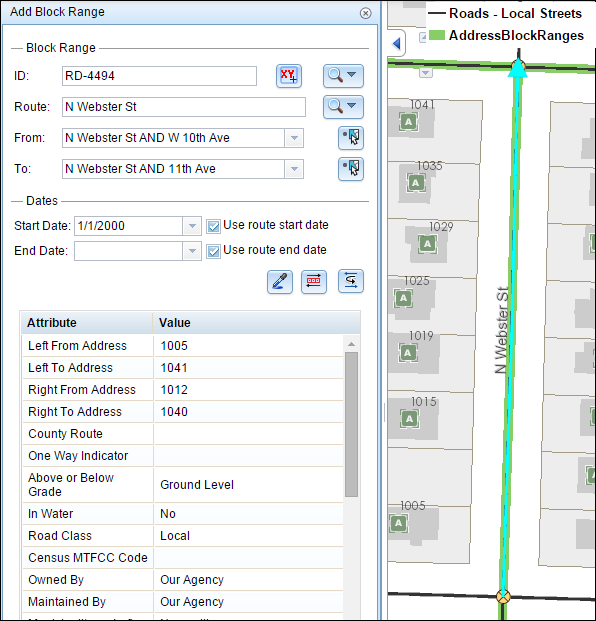
When editing the existing block range, the widget's dialog box is populated with existing information that you can edit.
- Select the intersection where the block range will start.
- For the new block range, the drop-down list is populated with the intersections that are located at the start of the block range and are present on the same route.
- For an existing block range, if there is no intersection populated automatically, the intersection can be selected using the drop-down list or the Select intersection tool.
- For an existing block range, if the intersection is already populated, it can be modified using the Select intersection tool for the following conditions only:
- You can choose from new intersections that are created within the existing block range due to route edits.
- You can extend an existing block range when no block range currently exists in that location.
- You can choose an adjacent intersection on the same route if no block range is present at that location. This is particularly helpful in cases where an existing intersection is deleted due to route edits.
- Select the intersection where the block range will end.
- For the new block range, the drop-down list is populated with the intersections that are located at the end of the block range and are present on the same route.
- For an existing block range, if there is no intersection populated automatically, the intersection can be selected using the drop-down list or the Select intersection tool.
- For an existing block range, if the intersection is already populated, it can be modified using the Select intersection tool for the following conditions only:
- You can choose from new intersections that are created within the existing block range due to route edits.
- You can extend an existing block range when no block range currently exists in that location.
- You can choose an adjacent intersection on the same route if no block range is present at that location. This is particularly helpful in cases where an existing intersection is deleted due to route edits.
- Choose the Start Date that will define the start date of the block range.
- Click the Start Date drop-down calendar to choose the start date.
- Check the Use route start date check box to use the start date of the routes.
The start date defaults to today's date, but you can choose a date using the date picker. The end date is optional, and if it is not provided, the block range remains valid now and into the future.
- Choose the End Date that will define the end date of the block range.
- Click the End Date drop-down calendar to choose the end date.
- Check the Use route end date check box to use the end date of the routes.
- To copy attributes from another block range, click the Copy Attributes button
 and click a block range on the map from which to copy the attributes.
 - To flip the address range values of a selected block range, click the Flip Parity button
 .
.This does not change the direction of the block range.
- To flip the direction of a selected block range, click the Reverse Direction button
 .
. - Provide or edit the attribute information for the block range you selected.
- Click Save.
If you're creating a new block range, it's displayed on the map; otherwise, changes to an existing block range are saved.