ArcGIS Desktop

  • Documentation
  • Support

  • My Profile
  • Help
  • Sign Out
ArcGIS Desktop

ArcGIS Online

The mapping platform for your organization

ArcGIS Desktop

A complete professional GIS

ArcGIS Enterprise

GIS in your enterprise

ArcGIS for Developers

Tools to build location-aware apps

ArcGIS Solutions

Free template maps and apps for your industry

ArcGIS Marketplace

Get apps and data for your organization

  • Documentation
  • Support
Esri
  • Sign In
user
  • My Profile
  • Sign Out

Help

  • Home
  • Get Started
  • Map
  • Analyze
  • Manage Data
  • Tools
  • More...

Creating an ALRS intersection class using an existing intersection feature class

You can register an existing intersection feature class point layer with Esri Roads and Highways using the following steps.

Note:

The existing intersection feature class should not be M or Z enabled. Use the table below as a guide for the field types required to register an existing intersection feature class.

FieldData TypeLengthIs NullableDescription

IntersectionId

GUID or String

Greater than 38 for string field

Yes

An autogenerated field providing a unique ID for each intersection

IntersectionName

String

255

Yes

A concatenated field showing the descriptors for the route and the intersecting feature

RouteId

String

255

Yes

Shows the route ID for the route network

FeatureId

String

100

Yes

Shows the ID for the intersecting feature

FeatureClassName

String

150

Yes

Shows the name of the feature class that has participated in the intersection

FromDate

Date

Yes

Shows the from date of the route

ToDate

Date

Yes

Shows the to date of the route

Measure

Double

Yes

The measure on the base route at the point of intersection

  1. Start ArcMap and browse to your data folder in the Catalog window.
  2. Right-click the LRS Network and click New > LRS Intersection Class.
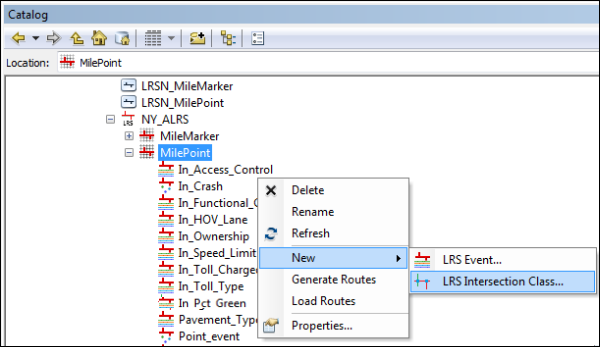
    Creating a new LRS intersection class

    The ALRS Intersection Class Setup wizard appears.
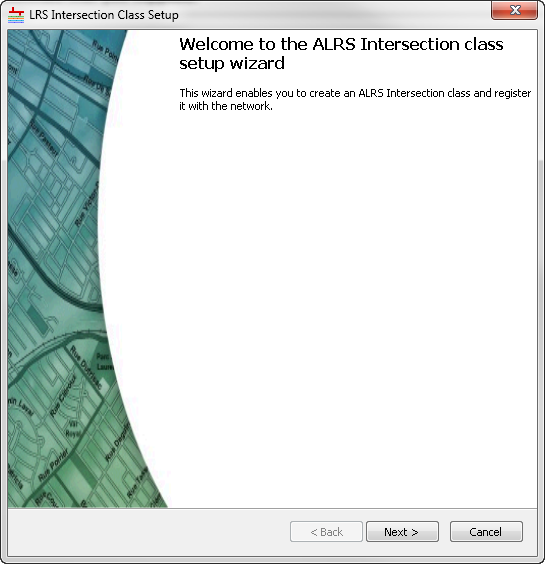
    ALRS Intersection Class Setup wizard

  3. Click Next.

    In this part of the wizard, you will choose the names of the appropriate columns that most closely match the required fields in the input point layer. You can choose the same field for multiple columns. For example, your route ID and feature ID can be the same input field.

    The General Properties dialog box appears.

  4. Provide a name for the new intersection class.
  5. Choose the parent network for the intersection class.
  6. Check the Use existing intersection feature class check box.
  7. Provide the name of the existing intersection feature class.

    The feature class should be a point layer located in the same geodatabase that houses the ALRS.

  8. Click the Intersection ID Field drop-down arrow and choose the IntersectionID field.

    The IntersectionId field is an autogenerated field providing a unique ID for each intersection.
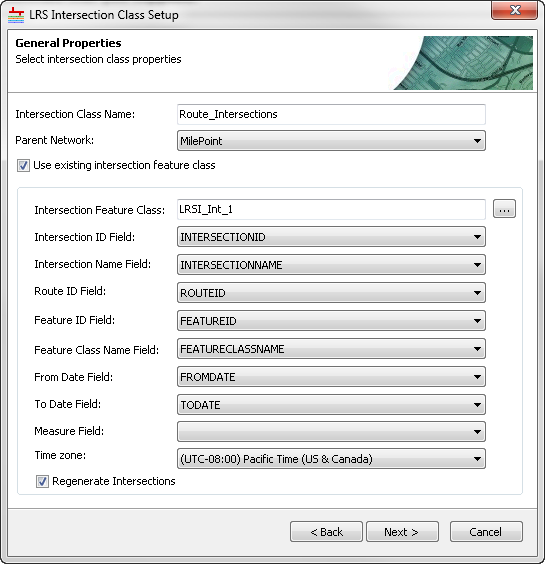
    LRS Intersection Class Setup

  9. Click the Intersection Name Field drop-down arrow and choose the IntersectionName field.

    The IntersectionName field is a concatenated field showing the descriptors for the route and the intersecting feature.

  10. Click the Route ID Field drop-down arrow and choose the RouteID field.

    The RouteID field provides the route IDs from the network layer.

  11. Click the Feature ID Field drop-down arrow and choose the FeatureID field.

    The FeatureID field provides the IDs for the intersecting features.

  12. Click the Feature Class Name Field drop-down arrow and choose the FeatureClassName field.

    The FeatureClassName field provides the name of the feature class that has intersected with the network layer.

  13. Click the From Date Field drop-down arrow and choose the FromDate field.

    The FromDate field provides the from date of the network features.

  14. Click the To Date Field drop-down arrow and choose the ToDate field.

    The ToDate field provides the to date of the network features.

  15. Click the Measure Field drop-down arrow and choose the Measure field.

    The Measure field stores the measure value of the route at the intersection's location.

  16. Click the Time Zone drop-down arrow and choose the time zone for the data.
  17. Check the Regenerate Intersections check box if you want to re-create the intersections.

    If you leave the option unchecked (default), the intersections are not generated by the tool and the point layer is only copied to be registered with the LRS.

    Note:
    • If a message appears that is related to acquiring locks, the need to reconcile, or not being able to acquire locks, and so on, then Roads and Highways conflict prevention is enabled. For more information about these messages, see Conflict prevention in Roads and Highways for Desktop.

    • If you have enabled conflict prevention, then all the routes in the participating networks need to be locked. This is required to produce the intersections from the most up-to-date version of the routes.
    • If you are working in the lock root version, all the locks acquired by the tool to create the intersections will be released automatically.
    • If you are working in a child version, all the locks acquired by the tool to create the intersections will remain until you reconcile with the lock root version.

  18. Click Next.
  19. Click Finish.

The intersection point layer will be registered with the LRS Network.

ArcGIS Desktop

  • Home
  • Documentation
  • Support

ArcGIS Platform

  • ArcGIS Online
  • ArcGIS Desktop
  • ArcGIS Enterprise
  • ArcGIS for Developers
  • ArcGIS Solutions
  • ArcGIS Marketplace

About Esri

  • About Us
  • Careers
  • Esri Blog
  • User Conference
  • Developer Summit
Esri
Tell us what you think.
Copyright © 2018 Esri. | Privacy | Legal