- Open a web browser and browse to Roadway Characteristics Editor.
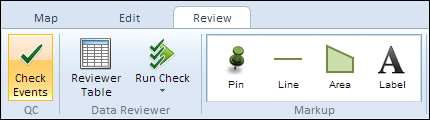
- Click the Review tab and in the QC group, click Check Events.
The Check Events on Route dialog box appears.
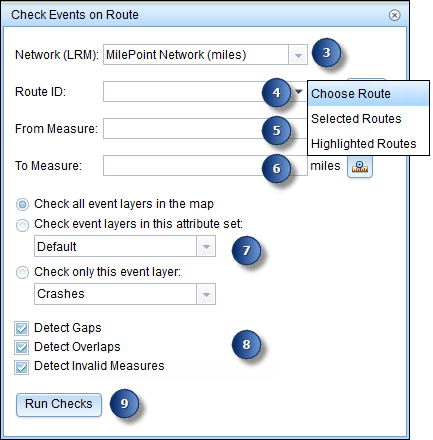
- Click the Network (LRM) drop-down arrow and choose the LRS Network that will serve as a source for selecting the location of the quality control check.
This can be any LRS Network published as a layer in RCE.
- Type a route ID in the Route ID text box. You can also use the drop-down list to do the following:
- Select the Choose Routes option and use the Select a Route on the Map tool
 to pick the route that will be used to check events.
 - Select the Selected Routes option to pick all the routes that are selected using the route selection method.
- Select the Highlighted Routes option to pick only the routes that are highlighted from the route selection set.
The selected routes are now highlighted on the map.
- Select the Choose Routes option and use the Select a Route on the Map tool
- Type a From Measure value of the intended start location of the quality control check along the route in the From Measure text box, or use the Select From Measure on the Map tool
 to select the start location from the map.
A green plus symbol appears at the selected location on the map.
- Enter a To Measure value of the intended end location of the quality control check along the route in the To Measure text box, or use the Select To Measure on the Map tool to select the end location from the map.
If you do not enter the From and To Measure values, the tool runs with the Start and End Measure values of the route.
A red cross symbol appears at the selected location on the map.
- Choose an option for validating events.
- Check all event layers in the map.
- Choose all the events present in a particular attribute set. For more information on how to create an attribute set containing multiple events, see Configuring attribute sets.
- Choose a specific event layer using the drop-down arrow.
- Select checks.
- Detect Gaps
- Detect Overlaps
- Detect Invalid Measures
- Click Run Checks.
The Quality Control Results grid opens and is populated with results.
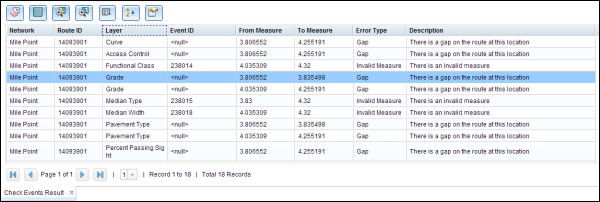
- The results can be explored using the navigation buttons at the bottom.
- Click the First Page button
 or Last Page button
  to go to the first or last page of results.
 - Click the Next Page button
 or Previous Page button
  to go to the next or previous page of results. Alternatively, you can use the drop-down arrow and choose the page number to directly access a page.
- Click the First Page button
The Select From Measure on the Map tool is disabled if you choose either the Selected Routes or the Highlighted Routes option. In those cases, the From Measure defaults to the Start Measure of the route.
The Select To Measure on the Map tool is disabled if you choose either the Selected Routes or the Highlighted Routes option. In those cases, the To Measure defaults to the End Measure of the route.
You can use the following tools to browse and export the results.
| Tool | Function |
|---|---|
 | Clear map highlights. |
 | Highlight all. |
 | Zoom to highlighted error. |
 | Zoom to selected errors. |
 | Export selected features to CSV file. |
 | Use advanced table sorting to organize results. |
 | Use table properties to filter results. |