In Task Assistant Manager, you can associate ArcMap commands with a step in the workflow. The Task Manager Utilities category in the Command Item Editor contains commands that may be useful during workflow creation. Commands are associated with specific workflow steps and allow a specific function to occur when you run that step in the task assistant workflow.
The Execute Hyperlink command opens a hyperlink when a user executes a step in the task assistant workflow. The hyperlink can be a Web address, path to an FTP site, path to a specified file, or a network directory.
- Start ArcMap.
- If necessary, click the Task Assistant button
 on the Task Manager toolbar to display the Task Assistant window.
 - Open a task assistant workflow.
- Click to select the step to configure in the Task Assistant window.
- Click the Designer tab.
- Click the cell next to Commands and click the ellipsis (...) that appears.
The Command Item Editor dialog box appears.
- In the Categories list, click the Task Manager Utilities category.
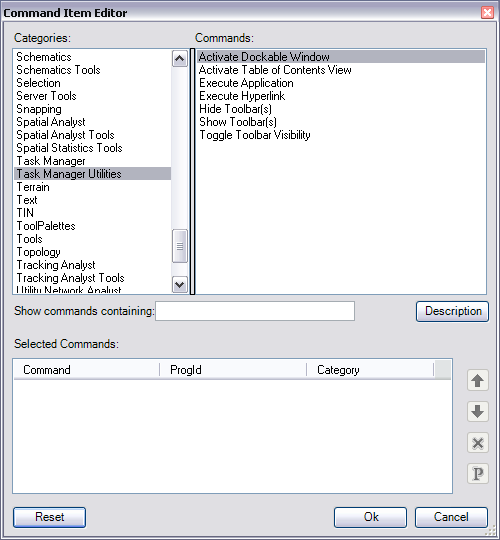
- Double-click the Execute Hyperlink command.
The Execute Hyperlink command is listed in the Selected Command area.
- Click the Command Parameters button
 .
.
The Command Parameters dialog box appears.
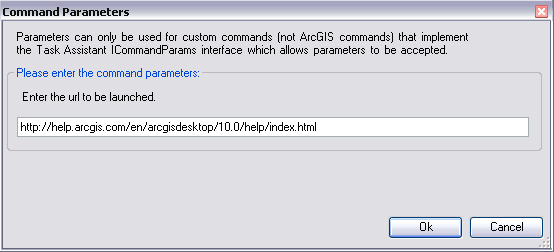
- Enter the hyperlink to be launched.
For a hyperlink, the path must start with http://; for files, the path must start with file://; and for network directories, the path must start with \\<server_name>
- Click OK.
- Click OK to close the Command Item Editor dialog box.