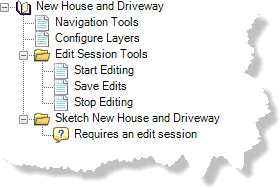
In this exercise, you will learn how to configure steps to have different styles. At the completion of this exercise, your Task Assistant window will appear as follows:
- Click the New Step button
 on the Task Assistant window.
A new step appears in the Task Assistant window.
- Click to highlight the new step.
- If necessary, click any of the step management buttons on the Task Assistant window to place the step at the correct level.
The step should be at the same level as Edit Session Tools.
- Click the Designer tab.
- Click the cell next to Description and type Sketch New House and Driveway.
- Click the cell next to Name, double-click the existing text, and type Sketch New House and Driveway.
- Click the New Step button on the Task Assistant window.
A new step appears in the Task Assistant window.
- Click to highlight the new step.
- If necessary, click the Demote Step button
 or any of the other step management buttons on the Task Assistant window to place the step at the correct level.
- Once the step is at the level you want, click the Designer tab.
- Click the cell next to Description and type Reminder—the following steps require an edit session.
- Click the cell next to Name, double-click the existing text, then type Requires an Edit Session.
- Click the cell next to Node Style and click the ellipsis button (...) that appears.
The Node Style Item Editor dialog box appears.
- Click the Select a Style drop-down arrow and choose Help.
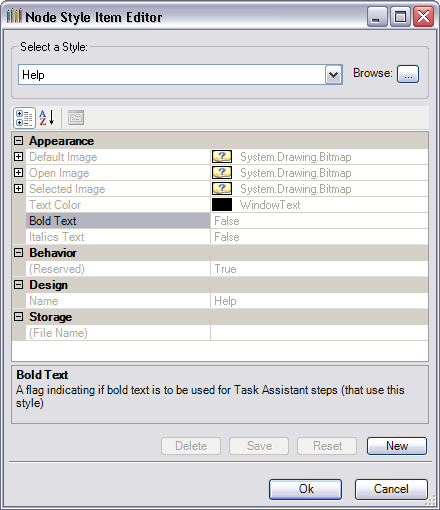
- Click OK.
The step is now displayed with a question mark icon instead of the initial New Step icon.
In this exercise, you configured steps to have different styles. You can now proceed to the next exercise, Exercise 7: Adding steps for digitizing a new house.