ArcGIS for Desktop

  • Documentation
  • Pricing
  • Support

  • My Profile
  • Help
  • Sign Out
ArcGIS for Desktop

ArcGIS Online

The mapping platform for your organization

ArcGIS for Desktop

A complete professional GIS

ArcGIS for Server

GIS in your enterprise

ArcGIS for Developers

Tools to build location-aware apps

ArcGIS Solutions

Free template maps and apps for your industry

ArcGIS Marketplace

Get apps and data for your organization

  • Documentation
  • Pricing
  • Support
Esri
  • Sign In
user
  • My Profile
  • Sign Out

Help

  • Home
  • Get Started
  • Map
  • Analyze
  • Manage Data
  • Tools
  • More...

Hiding the Help tab on the Task Assistant window

In the Configuration Manager, you can choose to show or hide the Help tab in the Task Assistant window. This allows you to hide the Help tab during the design process, when it may be best to only have the Designer and Properties tabs visible. Hiding the Help tab can also be useful if none of the workflow steps have help.

  1. Click Start > All Programs > Task Assistant Manager > Configuration Manager.

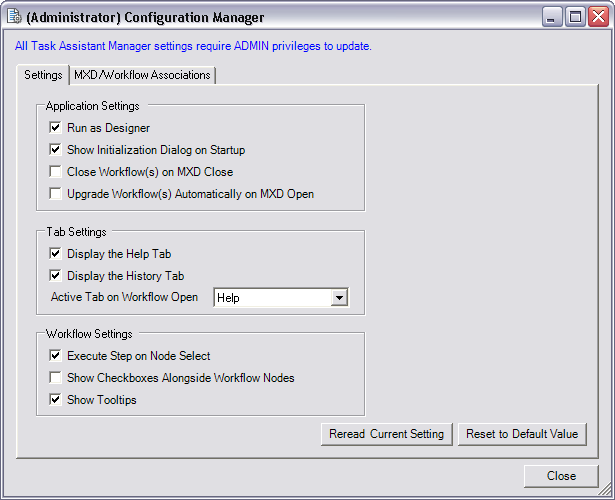
    The (Administrator) Configuration Manager dialog box appears.

    Note:

    If you do not have administrator privileges on the machine, the dialog box title is Configuration Manager, and you cannot change to Task Assistant designer mode.

  2. Click the Settings tab.
    (Administrator) Configuration Manager dialog box
  3. Uncheck the Display the Help Tab check box.
  4. Click Reread Current Settings to undo any changes and return the Configuration Manager to the current settings.
  5. Click Reset to Default Values to reset the default settings.
  6. Click Close.
Feedback on this topic?

ArcGIS for Desktop

  • Home
  • Documentation
  • Pricing
  • Support

ArcGIS Platform

  • ArcGIS Online
  • ArcGIS for Desktop
  • ArcGIS for Server
  • ArcGIS for Developers
  • ArcGIS Solutions
  • ArcGIS Marketplace

About Esri

  • About Us
  • Careers
  • Insiders Blog
  • User Conference
  • Developer Summit
Esri
© Copyright 2016 Environmental Systems Research Institute, Inc. | Privacy | Legal