The configuration information needed to design the steps that are included in a task assistant workflow include commands, feature template settings, and layer information. Configuration information can be obtained directly from ArcMap or from a saved configuration file. A saved configuration file can be used to create multiple workflows.
The required configuration information includes
- ProgIDs for Esri's ArcGIS and custom ArcObjects functionality
- Geoprocessing tools, scripts, and models
- Project-specific information such as feature layer names or feature templates
Configuration files do not need to be distributed with task assistant workflows to execute the steps in the workflow. However, you will need access to the same ArcMap functionality, feature template settings, and layer information on the executing machine whether the original configuration information comes from ArcMap or a configuration file.
Since Task Assistant Manager is embedded in ArcMap, it can obtain the required configuration information seamlessly. When initialized for the first time following the installation, Task Assistant Manager checks for the default configuration file, DefaultArcGISConfig.xml, located in <user application data>\ESRI\TAM10.3.1\Data\Resources\Xml.
If the file does not exist when you start Task Assistant Manager, it is created with the required configuration information. For each subsequent use, this default configuration file will be used unless you specifically load a different configuration file for the current ArcMap session.
This process can also be used to refresh the configuration file after a new command has been registered with ArcMap.
- Start ArcMap.
- If necessary, click the Task Assistant button
 on the Task Manager toolbar to display the Task Assistant window.
 - Click the Properties tab on the Task Assistant window.
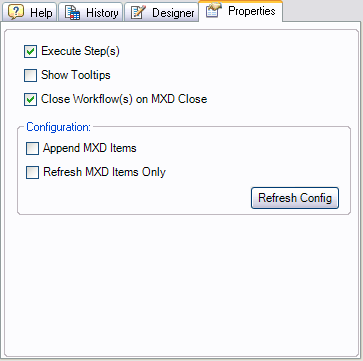
- Click Refresh Config.
The Refresh Designer Configuration message appears.
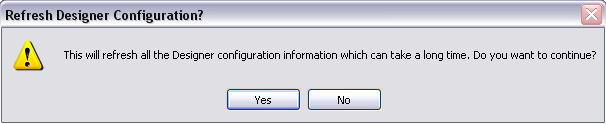
- Click Yes to continue.
The Refreshing Designer Configuration status window appears with a progress bar. Once the progress bar is complete, configuration information is obtained directly from ArcMap, and any changes to the ArcMap table of contents are immediately available.