ArcGIS for Desktop

  • Documentation
  • Pricing
  • Support

  • My Profile
  • Help
  • Sign Out
ArcGIS for Desktop

ArcGIS Online

The mapping platform for your organization

ArcGIS for Desktop

A complete professional GIS

ArcGIS for Server

GIS in your enterprise

ArcGIS for Developers

Tools to build location-aware apps

ArcGIS Solutions

Free template maps and apps for your industry

ArcGIS Marketplace

Get apps and data for your organization

  • Documentation
  • Pricing
  • Support
Esri
  • Sign In
user
  • My Profile
  • Sign Out

Help

  • Home
  • Get Started
  • Map
  • Analyze
  • Manage Data
  • Tools
  • More...

Setting workflows to remain open on MXD close by default

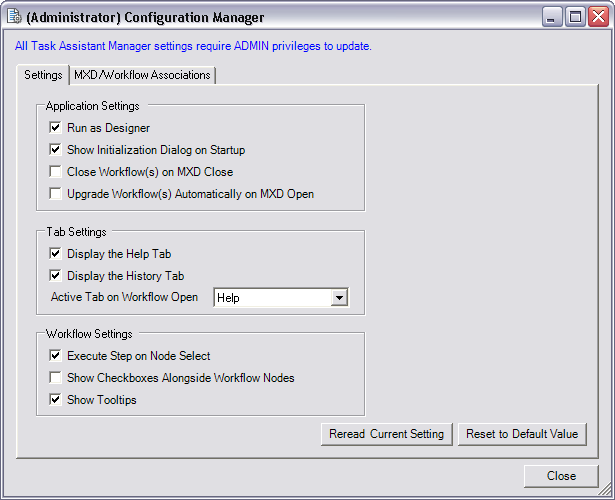
In the Configuration Manager, you can set workflows to remain open and loaded in the Task Assistant window when an MXD closes. Unchecking the Close Workflow(s) when the mxd is Closed check box allows you to continue to modify steps in the workflow, even if the associated map document is closed. This setting also applies across ArcMap sessions until it is changed again in the Configuration Manager.

Note:

It is recommended that you ensure that the Execute Steps option is disabled if the workflow is open when the MXD is not. If the Execute Steps option is enabled when the MXD is closed, you receive a warning when a step is clicked.

If this check box is checked, the workflow automatically closes when the related MXD is closed.

  1. Click Start > All Programs > Task Assistant Manager > Configuration Manager.

    The (Administrator) Configuration Manager dialog box appears.

    Note:

    If you do not have administrator privileges on the machine, the dialog box title is Configuration Manager, and you cannot change to Task Assistant designer mode.

  2. Click the Settings tab.
    (Administrator) Configuration Manager dialog box
  3. Uncheck the Close Workflow(s) when the MXD is Closed check box to have open task assistant workflows remain open when an MXD closes.
  4. Click Reread Current Settings to undo any changes and return the Configuration Manager to the current settings.
  5. Click Reset to Default Values to reset the default settings.
  6. Click Close.
Feedback on this topic?

ArcGIS for Desktop

  • Home
  • Documentation
  • Pricing
  • Support

ArcGIS Platform

  • ArcGIS Online
  • ArcGIS for Desktop
  • ArcGIS for Server
  • ArcGIS for Developers
  • ArcGIS Solutions
  • ArcGIS Marketplace

About Esri

  • About Us
  • Careers
  • Insiders Blog
  • User Conference
  • Developer Summit
Esri
© Copyright 2016 Environmental Systems Research Institute, Inc. | Privacy | Legal