Snapping properties can be configured to help streamline a workflow for the end user.
- Start ArcMap.
- If necessary, click the Task Assistant button
 on the Task Manager toolbar to display the Task Assistant window.
 - Open a task assistant workflow.
- Click to select the step to configure in the Task Assistant window.
- Click the Designer tab.
- Click the cell next to Snapping and click the ellipsis (...) that appears.
The Snapping Item Editor dialog box appears.
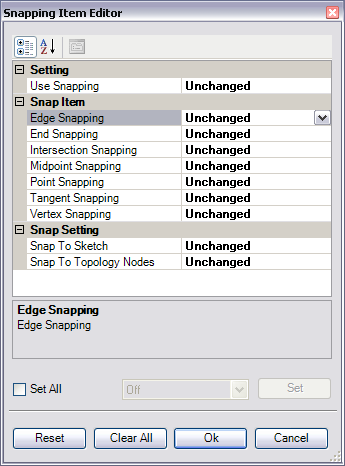
Snapping Item Editor dialog box with the default snapping environment enabled 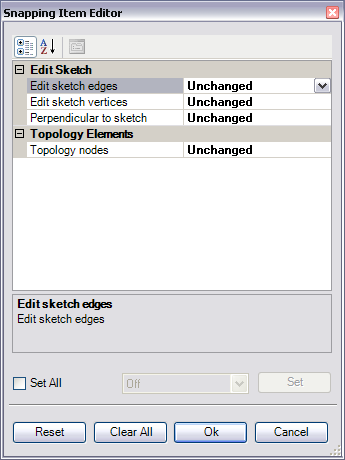
Snapping Item Editor dialog box with options for classic snapping - Highlight each snapping setting that needs to be configured.
- Click the drop-down arrow in the cell next to the setting and choose an appropriate value.
- On—Enables the snapping setting if it is not enabled on the Snapping toolbar or window
- Off—Disables the snapping setting if it is enabled on the Snapping toolbar or window
- Unchanged—Leaves the snapping setting as-is on the Snapping toolbar or window
- If you want to set all snap settings to the same value , do the following:
- Check the Set All check box.
- Click the drop-down arrow and choose a value.
- Click Set to apply the settings.
- Click OK.