ArcGIS for Desktop

  • Documentation
  • Pricing
  • Support

  • My Profile
  • Help
  • Sign Out
ArcGIS for Desktop

ArcGIS Online

The mapping platform for your organization

ArcGIS for Desktop

A complete professional GIS

ArcGIS for Server

GIS in your enterprise

ArcGIS for Developers

Tools to build location-aware apps

ArcGIS Solutions

Free template maps and apps for your industry

ArcGIS Marketplace

Get apps and data for your organization

  • Documentation
  • Pricing
  • Support
Esri
  • Sign In
user
  • My Profile
  • Sign Out

Help

  • Home
  • Get Started
  • Map
  • Analyze
  • Manage Data
  • Tools
  • More...

Changing the Default Database in ArcCatalog

Available with Standard or Advanced license.

When there are many Workflow Manager Database connections configured on a local system, the Workflow Manager applications will access the default database connection. This is denoted with a check mark on the connection in the ArcCatalog Workflow Manager Databases node.

  1. Start ArcCatalog and ensure that the Workflow Manager extension is enabled.
  2. Right-click the Workflow Manager Database node you want to activate and click Set as default database.

    The default database for Workflow Manager will be denoted with a check mark.
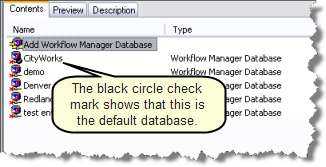
    Default Workflow Manager Database
    The check mark shows which Workflow Manager Database is the one the client applications will access when open.
Feedback on this topic?

ArcGIS for Desktop

  • Home
  • Documentation
  • Pricing
  • Support

ArcGIS Platform

  • ArcGIS Online
  • ArcGIS for Desktop
  • ArcGIS for Server
  • ArcGIS for Developers
  • ArcGIS Solutions
  • ArcGIS Marketplace

About Esri

  • About Us
  • Careers
  • Insiders Blog
  • User Conference
  • Developer Summit
Esri
© Copyright 2016 Environmental Systems Research Institute, Inc. | Privacy | Legal