ArcGIS for Desktop

  • Documentation
  • Pricing
  • Support

  • My Profile
  • Help
  • Sign Out
ArcGIS for Desktop

ArcGIS Online

The mapping platform for your organization

ArcGIS for Desktop

A complete professional GIS

ArcGIS for Server

GIS in your enterprise

ArcGIS for Developers

Tools to build location-aware apps

ArcGIS Solutions

Free template maps and apps for your industry

ArcGIS Marketplace

Get apps and data for your organization

  • Documentation
  • Pricing
  • Support
Esri
  • Sign In
user
  • My Profile
  • Sign Out

Help

  • Home
  • Get Started
  • Map
  • Analyze
  • Manage Data
  • Tools
  • More...

Creating the Workflow Manager workspace in an enterprise geodatabase

Available with Workflow Manager license.

  • Creating and configuring the Workflow Manager workspace
Complexity:
Beginner
Data Requirement:
ArcGIS Tutorial Data for Desktop

The postinstallation utility creates all the system tables required for you to use ArcGIS Workflow Manager.

Creating and configuring the Workflow Manager workspace

The postinstallation utility creates all the system tables required for you to use ArcGIS Workflow Manager for Desktop.

  1. From the Start menu, click ArcGIS Workflow Manager > Workflow Manager Post Installation.

    The ArcGIS Workflow Manager Post-Installation wizard appears.
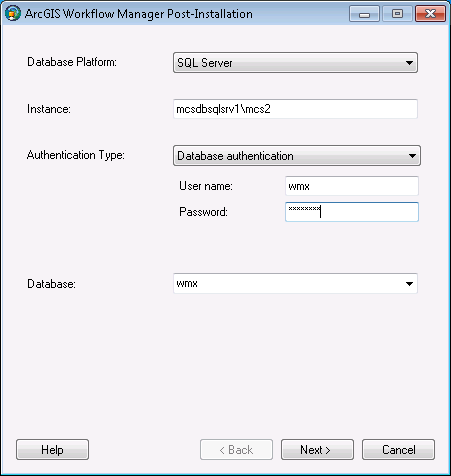
    ArcGIS Workflow Manager Post-Installation
  2. Click Next.
    ArcGIS Workflow Manager Post-Installation
  3. Choose the WMX configuration keyword, created while modifying DBTUNE, for your Workflow Manager geodatabase.
  4. Click Next.
  5. Define the spatial reference for the area of interest feature class.

    A separate two-page wizard appears, allowing you to select the coordinate system and extents.

    ArcGIS Workflow Manager Post-Installation
  6. Click Next.

    Choose your starting configuration option for the Workflow Manager repository.

    • No Configuration Import will put the Workflow Manager system tables schema into your designated geodatabase and will not prepopulate any of the configuration elements.

    • Minimum Configuration imports only the basic elements that the Workflow Manager system requires.

      Note:

      If you plan to use all the functionality available in the Workflow Manager client application, it is recommended that you import at least the minimum configuration

    • Quick Configuration includes the minimum elements plus predefined job types as an example.

    • Custom Configuration allows you to import a preexisting Workflow Manager configuration file.

      ArcGIS Workflow Manager Post-Installation
      Note:

      If you plan to import a Workflow Manager configuration exported from a 3.x database, choose the No Configuration Import option. Tools are provided in the Workflow Manager Configuration Manager to import the legacy configuration files.

  7. Click Next.
  8. Choose whether you would like to create a Workflow Manager database connection to this new repository when the postinstallation is complete.
    1. Specify a connection alias.
    2. Specify a repository name.
      Note:

      This is used as a unique identifier when defining a cluster for repository replication.

      Note:

      The following characters must not be used in the connection alias and repository name \ / : * ? < > | ".

    3. Specify to set the database as default.
      ArcGIS Workflow Manager Post-Installation
  9. Click Finish.

    The system tables needed to use Workflow Manager are created in the database. Also, the current user running the postinstallation is automatically added to the list of users and is added to the Administrator group, which grants the user administrator access.

    The final page in the wizard appears, indicating whether the postinstallation was successful.

    Note:

    Administrator access means that the current user can connect to the selected database through the Workflow Manager Administrator to make edits to components of your system.

  10. Choose whether you would like to view the log.
    ArcGIS Workflow Manager Post-Installation
  11. Click Close.
Feedback on this topic?

ArcGIS for Desktop

  • Home
  • Documentation
  • Pricing
  • Support

ArcGIS Platform

  • ArcGIS Online
  • ArcGIS for Desktop
  • ArcGIS for Server
  • ArcGIS for Developers
  • ArcGIS Solutions
  • ArcGIS Marketplace

About Esri

  • About Us
  • Careers
  • Insiders Blog
  • User Conference
  • Developer Summit
Esri
© Copyright 2016 Environmental Systems Research Institute, Inc. | Privacy | Legal