Available with Workflow Manager license.
The Attachments tab allows anyone with Manage attachment privilege to associate documents with a job. These documents can represent any information related to a job. Examples of these documents could be
- Word documents of instructions
- Proposals for work
- Scanned maps for digitizing
- TIFFs to georeference
These documents can be added by a manager or somebody who needs to convey information to another person working with the job.
There are three ways to store an attachment with a job:
- Store as Link—Stores a link to the file in some location. For this method to be effective, the file must be accessible from multiple locations (on a shared file system).
- Store as Embedded—Stores the file inside the database. This method can take up significant room in the database, but the file will be accessible from all locations via Workflow Manager. Contact your database administrator to find out the file size limit for your particular database (MAXBLOBSIZE).
- Store as URL—Stores the URL inside the database.
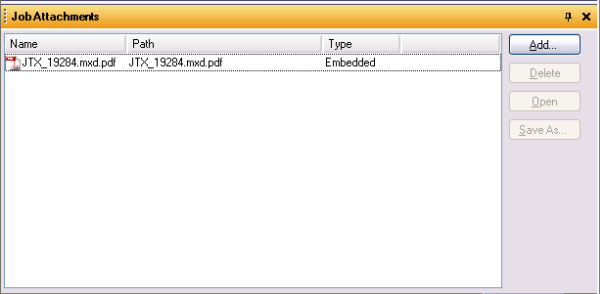
Clicking the Attachments tab when a job is selected in the job list shows something similar to the figure above. Attachments are shown as icons in the large area. Icons should represent the file type of the attachment. There are three different types of views for viewing the attachments—icon, list, and details.
Adding an attachment to the job
You can add attachments to jobs by using the Add button. The Add button will present you with a regular file browser so you can choose any file on your file system to add to the job.
- Select a Job.
- Click the Attachments tab.
- Click Add on the side panel.
- Choose whether you want to store the attachment inside the database, as a link, or as a URL.
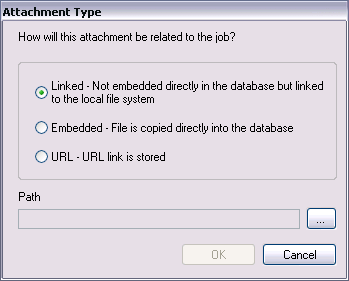
- Click the browse button for the Path and select the file you want to attach.
- Click OK
The icon appears on the Attachments tab.
Deleting an attachment from the job
The attachments added to the job can be deleted from the system by using the Delete button. If the attachment was embedded, it will remove it completely from the database. If it was linked, it will only remove the reference to the file and not delete it from your file system.
- Select a Job.
- Click the Attachments tab.
- From the list of available attachments, select the icon of the one you want to delete.
- Click Delete on the side panel.
- Click Yes to confirm the deletion.
The icon disappears to show that the attachment has been removed.
Viewing an attachment from the job
Deleting an attachment from the job
The attachments added to the job can be viewed by using the View button. This will open the file with the windows associated program or you can choose the appropriate program to view the contents of the attachment with.
- Select a Job.
- Click the Attachments tab.
- Select the attachment you want to view.
- Click Open on the side panel.
The attachment opens in the appropriate application.
Saving an attachment from the job
The attachments can be saved from the job. This can be useful if you want to update the contents of the attachment based on findings on the job. You can save it to modify the contents, then read this as an attachment for the job.
- Select a Job.
- Click the Attachments tab.
- Select the attachment you want to save.
- Click Save As on the side panel.
- Navigate to a folder and choose a file name.
- Click Save.