Available with Standard or Advanced license.
Naming Schemes allow administrators to configure exactly how certain elements in WMX are named and put dynamic properties into these names. The elements that support naming schemes are
- Job MXDs
- Geodatabase versions
- Jobs
The naming schemes are a combination of fixed text and tokens. These can be combined to produce a highly informative name of the elements they are naming.
Configuring Job Types naming schemes
- Start the Administrator and connect to your Workflow Manager database
- In the Workflow Manager Administrator, navigate to the JobTypes folder under Job Components.
- Right-click the folder and click Add Job Type.
The Job Type Properties dialog box appears.
- Navigate to the Naming tab on the Job Type dialog box, you will see the naming scheme entries as follows:
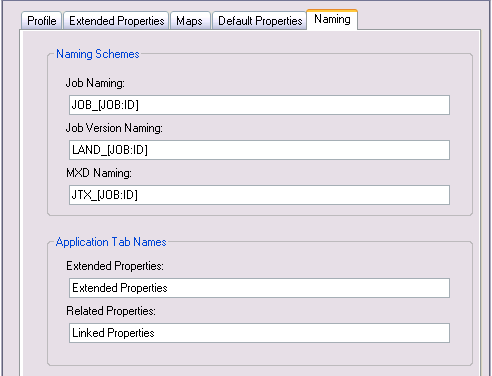
Enter naming schemes for your job types so you can quickly decipher what type of work a job is associated with. - Use tokens to supplement the naming, [JOB:ID] and [SYS:CUR_DATE]. An example output of these would be
Job Name—WO_PARCELS_1567_05/01/2008
Job Version Name—PARCELS_1567
Job MXD Name—WO_DOC_PARCELS_1567
- Specify the names for the Extended Properties tab and Related Properties tab as it will appear in the client application and click OK.
For a full explanation and listing of tokens, see Using tokens.