Available with Standard or Advanced license.
Below is an outline of the steps necessary to get a Workflow Manager system up and running.
Running the Workflow Manager postinstallation
The first step in setting up a new Workflow Manager system is to run the Workflow Manager Post Installation. This is an administrative activity that inserts the necessary Workflow Manager system tables into your central database.
This utility also provides you with shortcuts for importing the minimum, or quick-start, configuration files and for creating the necessary database connection. These are both necessary steps in building your Workflow Manager system.
Upon completion of postinstallation, the current Windows user is registered as a user in Workflow Manager. This user is also added to the Administrator group and granted Administrative Access to the Workflow Manager Administrator. The Administrator Access is based on a privilege. For more information see: Privileges.
Specific database preparation recommendations and the postinstallation process have been outlined in Workflow Manager Postinstallation.
Creating a Workflow Manager database connection
The Workflow Manager applications require database connection information to access the job information in the Workflow Manager repository. These connections are defined using tools in the Administrator or ArcCatalog.
Read more about configuring these connections in Adding a WMX Database connection in the Administrator.
Adding Workflow Manager users
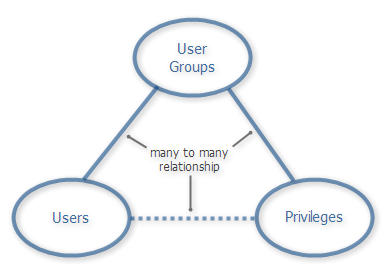
Users are a central configuration element in the Workflow Manager system. Application authentication, job assignment, and tracking all rely on the Workflow Manager users. Users, in combination with the groups and privileges, control the access privileges and permissions within the Workflow Manager system.
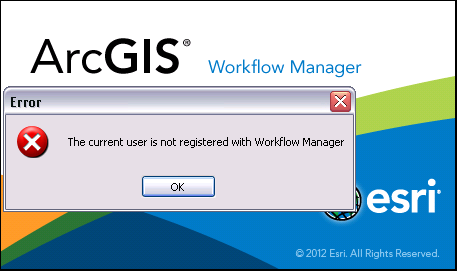
Anyone who accesses Workflow Manager must be registered with the Workflow Manager system. When first configuring Workflow Manager, you may encounter a message like the one below when the Workflow Manager client application starts up. Visit Users and Groups to learn more about adding Workflow Manager users.
Configuring Workflow Manager for your business
After the initial setup of the Workflow Manager repository, you'll be ready to begin configuring Workflow Manager to meet your specific needs. A great place to start is with a workflow that represents a process you follow every day, week, or month. The Configuring Workflow Manager help book covers all the concepts needed to define your business processes within Workflow Manager, including workflow editing.
The Workflow Manager SDK installed with the Desktop and Server editions includes additional help for customizing the Workflow Manager Client Application, building custom workflow steps, and other ways to extend your Workflow Manager implementation.
Deploying Workflow Manager to your users
Once you have your system up and running and are ready for your users to start tracking their work with Workflow Manager, you'll need to deploy it to them. There are few steps involved with this that are outlined in Deploying a Workflow Manager system in the Administering Workflow Manager book.