ArcGIS for Desktop

  • Documentation
  • Pricing
  • Support

  • My Profile
  • Help
  • Sign Out
ArcGIS for Desktop

ArcGIS Online

The mapping platform for your organization

ArcGIS for Desktop

A complete professional GIS

ArcGIS for Server

GIS in your enterprise

ArcGIS for Developers

Tools to build location-aware apps

ArcGIS Solutions

Free template maps and apps for your industry

ArcGIS Marketplace

Get apps and data for your organization

  • Documentation
  • Pricing
  • Support
Esri
  • Sign In
user
  • My Profile
  • Sign Out

Help

  • Home
  • Get Started
  • Map
  • Analyze
  • Manage Data
  • Tools
  • More...

Workflow validation rules

Available with Standard or Advanced license.

  • One start and one end
  • Must be a closed system (no gaps)
  • No self-looping steps
  • Looping rules

The workflow engine supports linear, branching, and looping workflows. You can also define job types with no workflow or even just one step. Once you've got more than one step, ArcGIS Workflow Manager will begin to enforce the rules detailed below.

When validating workflows in the editor, should something be invalid, Workflow Manager will inform you which steps are breaking the rules.

One start and one end

Every workflow that you design must have one unique starting point and one ending point. There are two exceptions to this rule: one-step workflows and jobs with no workflow at all.
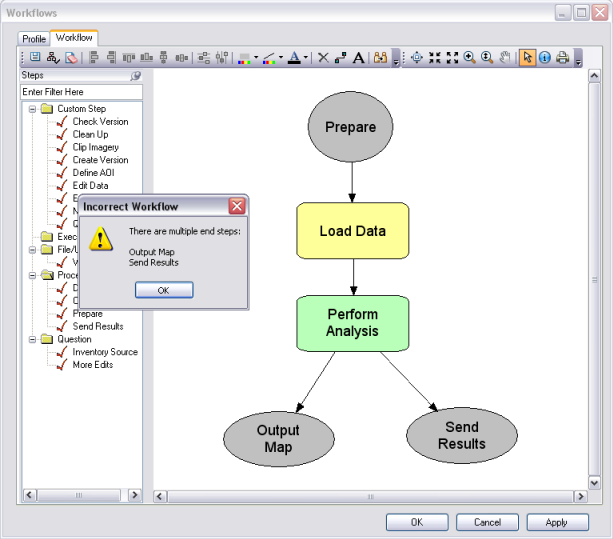
Multi start/end step workflows
If your workflow breaks this rule, you'll receive a message indicating which steps are invalid.

Must be a closed system (no gaps)

This rule prevents you from creating multiple workflows for one job type. You are unable to create two completely separate workflows for one job type. If you find that your work requires two different paths depending on some factor, consider two different job types or creating those as branches in a larger workflow.
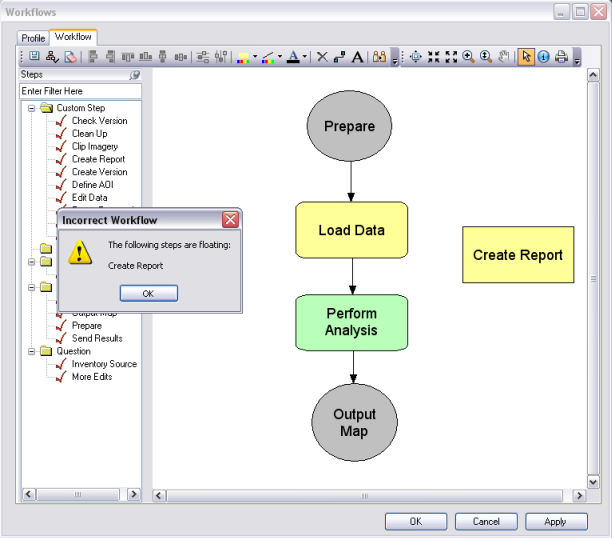
Floating step message
When there are steps or sections of workflow not connected into one, you'll receive a message indicating there are floating steps.

No self-looping steps

Workflow Manager will prevent you from looping a step back onto itself.
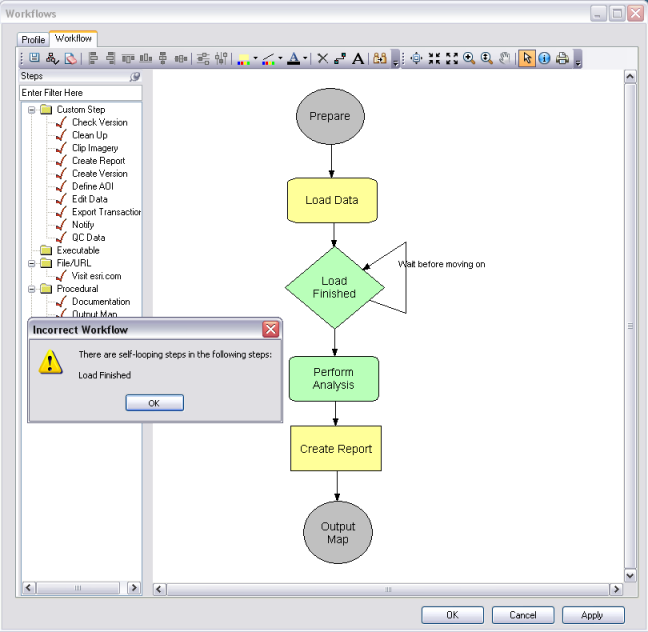
Self looping
To prevent an endless loop, Workflow Manager won't allow you to create a workflow with a self-looping step.

Looping rules

There are a couple of other looping rules that Workflow Manager will enforce.

For similar reasons as the one start and one end point, Workflow Manager will prevent loops from going back into the starting step, or from coming out of the last step in the workflow.
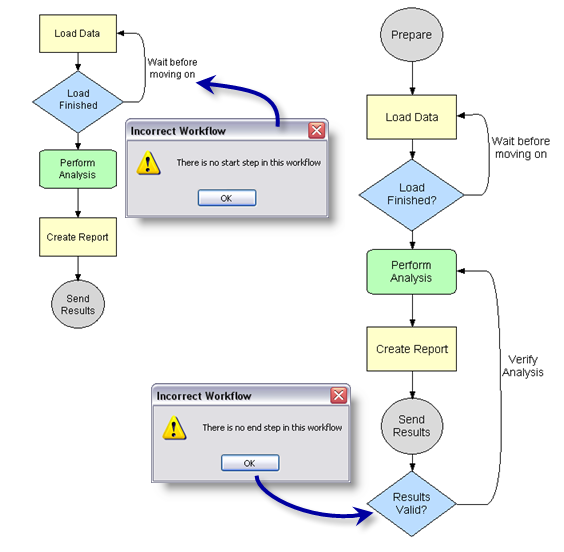
Looping rules
Looping back to the starting step or looping out of the end step in a workflow will break the validation rules.

Additionally, if you have concurrent sections in a workflow (two branches that are active at the same time), treat them as if they were their own mini-workflows or systems. Any loops created within those sections must be contained within themselves, and can't loop out to other concurrent or nonconcurrent sections in the overall workflow.
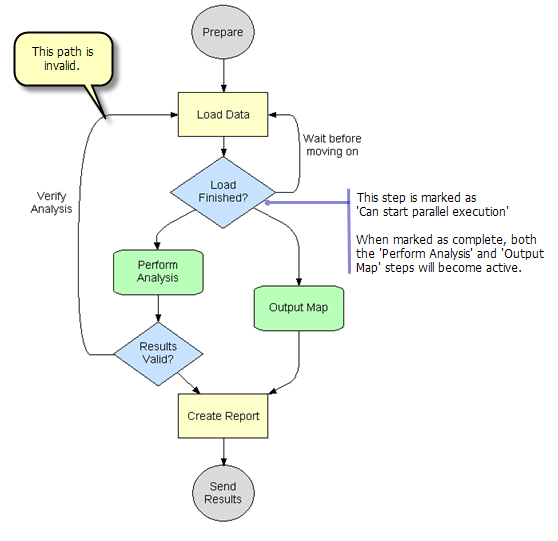
Concurrent loops
Loops in concurrent sections of a workflow must not loop back up to the previous nonconcurrent section of the overall workflow.
Feedback on this topic?

ArcGIS for Desktop

  • Home
  • Documentation
  • Pricing
  • Support

ArcGIS Platform

  • ArcGIS Online
  • ArcGIS for Desktop
  • ArcGIS for Server
  • ArcGIS for Developers
  • ArcGIS Solutions
  • ArcGIS Marketplace

About Esri

  • About Us
  • Careers
  • Insiders Blog
  • User Conference
  • Developer Summit
Esri
© Copyright 2016 Environmental Systems Research Institute, Inc. | Privacy | Legal