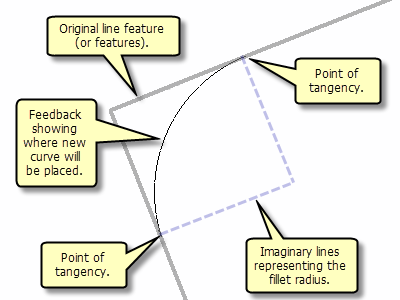
The Fillet tool creates a circular arc that is tangential to two line segments. This produces a smooth, curved connection between lines, such as a rounded curb at a street intersection.
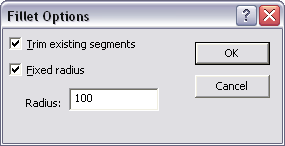
Right-click the map or press the O key to set the Fillet tool options. The options include whether to trim off the overlapping segments from the original feature or features and to use a fixed radius value.
- Click the Fillet tool
 on the Advanced Editing toolbar.
- Optionally, right-click or press O to set options. Click OK when you are finished.
- Check Trim existing segments if you want to remove the existing segments that extend beyond the tangent points.
- Check Fixed radius and type a radius for the curve. Fillet uses the current data frame coordinate system units for the fillet radius unless you specify another unit of measure.
- Click one line first, then the other, to specify the lines between which you want to construct the fillet.
- When the curve has the correct radius, click to finish the curve.
- Choose the target in which the new feature will be created.
- If you have feature templates for the layers in your map, click the Template button and click the template to use to create the new feature. You can also double-click the preview of the template to choose a different template.
- If you do not have feature templates, click the layer in which to create the feature.
- Click OK.
A new fillet curve joins the two selected lines. The extra line segments outside the curve are trimmed off if you checked Trim existing segments.
If no fixed radius is set, the fillet curve changes as you drag the pointer away from the first line you clicked.