Available with Standard or Advanced license.
You can use the Name Parcels tool  located on the Parcel Editor toolbar to batch assign sequential names, parcel identification numbers (PINs), or assessor's parcel numbers (APNs) to a set of adjacent parcels in the parcel fabric.
If a set of adjacent parcels has names that are sequential, the tool can be used to automatically populate the parcel name attributes of the selected adjacent parcels.
located on the Parcel Editor toolbar to batch assign sequential names, parcel identification numbers (PINs), or assessor's parcel numbers (APNs) to a set of adjacent parcels in the parcel fabric.
If a set of adjacent parcels has names that are sequential, the tool can be used to automatically populate the parcel name attributes of the selected adjacent parcels.
-
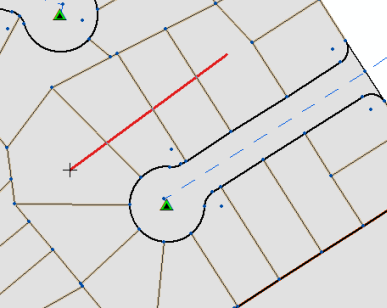
In an edit session in ArcMap, click the Name Parcels tool on the Parcel Editor toolbar and drag a line across the adjacent parcels to which you want to batch assign sequential names.
- On the Parcel sequence naming dialog box, type a numeric value in the Starting parcel number text box.
- Type a numeric value in the Increment text box.
- Type an alphanumeric prefix and suffix, respectively, in the Prefix and Suffix text boxes. Prefixes and suffixes are optional.
- Click OK to assign the parcel names.
Click the first parcel and drag a line to the last adjacent parcel in the set. Then double-click to finish dragging the line.
The first parcel in the adjacent sequence is assigned this value.
For example, if you typed a starting parcel number of 001, an increment of 2, and a prefix of A54, selected adjacent parcels are named A54001, A54003, A54005, and so on.