ArcGIS for Desktop

  • Documentation
  • Pricing
  • Support

  • My Profile
  • Help
  • Sign Out
ArcGIS for Desktop

ArcGIS Online

The mapping platform for your organization

ArcGIS for Desktop

A complete professional GIS

ArcGIS for Server

GIS in your enterprise

ArcGIS for Developers

Tools to build location-aware apps

ArcGIS Solutions

Free template maps and apps for your industry

ArcGIS Marketplace

Get apps and data for your organization

  • Documentation
  • Pricing
  • Support
Esri
  • Sign In
user
  • My Profile
  • Sign Out

Help

  • Home
  • Get Started
  • Map
  • Analyze
  • Manage Data
  • Tools
  • More...

Adding the Gazetteer Loader button to a toolbar

This topic describes how the current version of ArcGIS for Desktop can be used with a Metadata Service hosted by a previous version of ArcIMS.

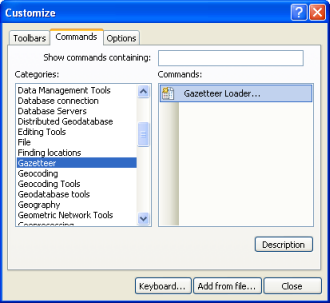
If you define a custom set of gazetteer places to add to your Gazetteer Metadata Service, you need to load them using the Gazetteer Loader provided with ArcCatalog. This tool can be added from the Customize dialog box to any ArcCatalog toolbar.

  1. Click Customize > Customize Mode.
  2. Click the Commands tab.
  3. Click Gazetteer in the Categories list on the left.
  4. Click Gazetteer Loader Gazetteer Loader in the Commands list on the right.

    Select the Gazetteer Loader command in the Customize dialog box.

  5. Drag the Gazetteer Loader command from the Commands list and drop it onto a toolbar.

    Drop the Gazetteer Loader command on the Metadata toolbar.

  6. Click Close.

Related Topics

  • A quick tour of Gazetteer Metadata Services
  • Adding places to an existing Gazetteer Metadata Service
Feedback on this topic?

ArcGIS for Desktop

  • Home
  • Documentation
  • Pricing
  • Support

ArcGIS Platform

  • ArcGIS Online
  • ArcGIS for Desktop
  • ArcGIS for Server
  • ArcGIS for Developers
  • ArcGIS Solutions
  • ArcGIS Marketplace

About Esri

  • About Us
  • Careers
  • Insiders Blog
  • User Conference
  • Developer Summit
Esri
© Copyright 2016 Environmental Systems Research Institute, Inc. | Privacy | Legal