ArcGIS Desktop

  • Documentación
  • Soporte

  • My Profile
  • Ayuda
  • Sign Out
ArcGIS Desktop

ArcGIS Online

La plataforma de representación cartográfica para tu organización

ArcGIS Desktop

Un completo SIG profesional

ArcGIS Enterprise

SIG en tu empresa

ArcGIS for Developers

Herramientas para crear aplicaciones basadas en la ubicación

ArcGIS Solutions

Plantillas de aplicaciones y mapas gratuitas para tu sector

ArcGIS Marketplace

Obtén aplicaciones y datos para tu organización.

  • Documentación
  • Soporte
Esri
  • Iniciar sesión
user
  • Mi perfil
  • Cerrar sesión

Help

  • Inicio
  • Introducción
  • Mapa
  • Analizar
  • Administrar datos
  • Herramientas
  • Más...

Viewing the visual specification rule properties on the Properties pane

The Properties pane on the Visual Specifications Advanced View dialog box shows only the properties associated with the rule that is currently selected.

The properties listed on the Properties pane allow you to set common values for more than one specification rule at a time. If more than one specification rule is selected, only the common values are displayed. For example, if the only common item is the database in which the rules are stored, only the Workspace cell will be populated. However, you can enter new values and assign those values to the selected rules.

  1. Start ArcMap.
  2. On the main menu, click Customize > Toolbars > Production Symbology.

    The Production Symbology toolbar appears.

  3. Click the Visual Specifications button Visual Specifications on the Production Symbology toolbar.

    The Visual Specifications dialog box appears.
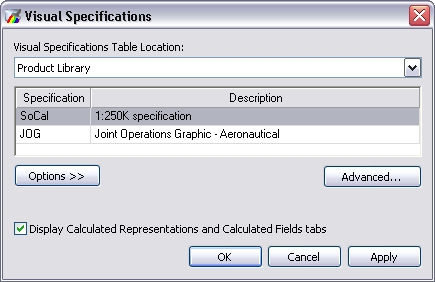
    Visual Specifications dialog box

  4. Click Advanced.

    The Visual Specifications Advanced View dialog box appears displaying rules saved in the selected specifications.
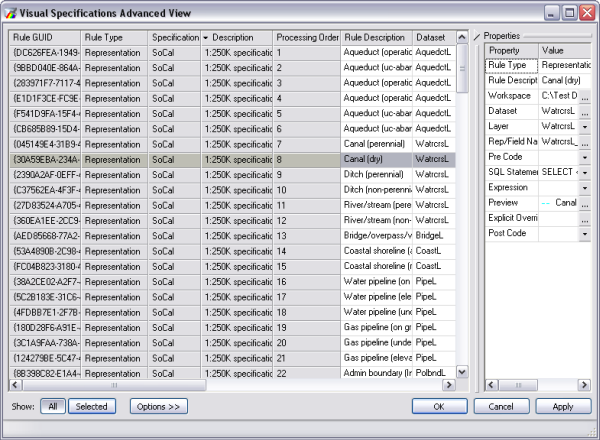
    The Visual Specifications Advanced View dialog box

  5. Sugerencia:

    You can also access the rule properties by clicking Options > Advanced on the Calculated Representations or Calculated Fields tab on the Layer Properties dialog box.

    Sugerencia:

    You can also access the rule properties from the Product Library window if you right-click Product Library and click Configure > Visual Specifications, then click Advanced.

  6. Choose a rule in the rules table to view its properties on the Properties pane.

    The rule's properties appear on the Properties pane.

  7. If necessary, click and drag the left-hand edge of the Properties pane to resize it.
  8. Click OK when you are finished reviewing the rule properties.

ArcGIS Desktop

  • Inicio
  • Documentación
  • Soporte

Plataforma ArcGIS

  • ArcGIS Online
  • ArcGIS Desktop
  • ArcGIS Enterprise
  • ArcGIS for Developers
  • ArcGIS Solutions
  • ArcGIS Marketplace

Acerca de Esri

  • Quiénes somos
  • Empleo
  • Blog interno
  • Conferencia de usuarios
  • Cumbre de desarrolladores
Esri
Díganos su opinión.
Copyright © 2017 Esri. | Privacidad | Legal