The Annotation Rotation tool is used to rotate annotation to the grid or to the page. When you choose to rotate the annotation to the grid, the angle is adjusted so the annotation is rotated to an angle of 0°. The rotation angle is also determined by the data frame's rotation angle, when applicable.
Annotation can also be rotated to the page. This allows the rotation angle to be determined by the page layout rather than the grid.
- Inicie ArcMap.
- Make sure that the production properties are set correctly.
Properties include the product library workspace, aviation production database workspace, Data Model Version, and Instances Maintained. The Data Model Version needs to be set to the AIS Charting model.
- Verify that you have an annotation layer loaded in your map.
- On the main menu, click Customize > Toolbars > Aviation Annotation.
- Click the Annotation Rotation button
 on the Aviation Annotation toolbar.
The Annotation Rotation dialog box appears.
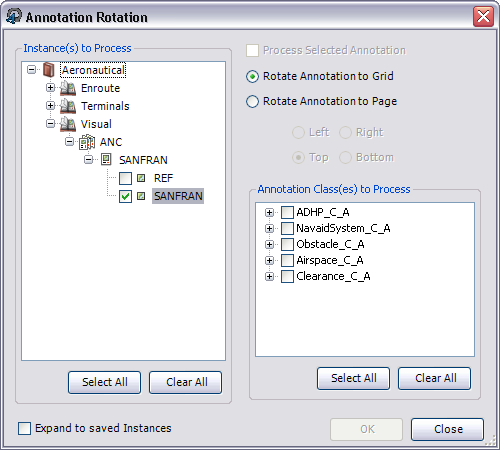
- If you only want to use this tool with an annotation layer included with your selected features, check the Process Selected Annotation check box.
When this check box is not checked, all the annotation in the layers you choose in the Annotation Class(es) to Process list are affected.
- Check the check boxes next to the instances you want to process.
The list displayed is built from the Instances Maintained set through the Product Library window.
- Choose a rotation option to determine how the annotation is going to be rotated.
- Rotate Annotation to Grid—Rotates the annotation based on your data frame's angle and the angle of the feature geometry
- Rotate Annotation to Page—Rotates the annotation so it is aligned based on the page layout
- If you choose the Rotate Annotation to Page option, choose the direction you want to use for rotating annotation.
- Left
- Right
- Top
- Bottom
- Check the check boxes next to the annotation classes you want to rotate in the Annotation Class(es) to Process list.
- Click OK.
The processing time depends on how much annotation is being rotated.
The Annotation Rotation Results dialog box appears.

- Click Close on the Annotation Rotation Results dialog box.