Although all the tables and feature classes can be included in a product class version, you can choose to exclude them from the extraction process when data is loaded into the production database. When a table or feature class is excluded from extraction, none of the records or features are extracted from it when data is loaded into the production database.
- Start ArcMap.
- If necessary, open the Product Library window by clicking Customize > Production > Product Library on the main menu.
A tree view of the product library appears.
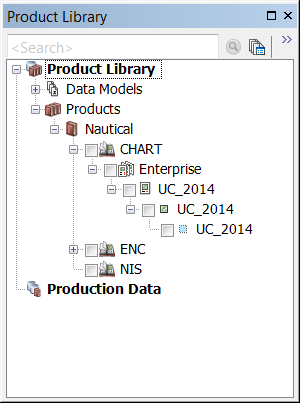
- If necessary, expand Product Library and Products.
- Navigate to the product class for which you want to define extraction queries.
For the Maritime Charting, specify the CHART product class.
- Right-click the product class and click Extraction Settings.
The Extraction Settings dialog box appears.

- Click Advanced.
The Extraction Exclusions dialog box appears.

- Check the Exclude from Extraction check box next to the table or feature class from which you do not want to extract features or records.
For CHART class extraction exclusions, check the following items:
- PLTS_VectorIsolatedNodes
- PLTS_VectorEdges
- PLTS_VectorConnectedNodes
- PLTS_SREL
- PLTS_NAME
- PLTS_MASTER_SLAVES
- PLTS_PRODUCT
- LightSectorsL
- A_L feature classes
- GRID_Grids
- Repeat step 7 as needed.
- Click OK.
The Extraction Settings dialog box appears.
- Haga clic en Aceptar.
The tables and feature classes whose check boxes are checked are excluded from the extraction process when data is loaded into the production database.