A solution is essentially the name of the specific projects or industry grouping that corresponds to the products being created. When distributing a solution, you have the option to choose any of the product classes that are associated with the solution. When you distribute a product class, the default product class version, default data model version, and any associated files such as batch jobs and field configurations are automatically included.
When distributing a solution, choose the solution in the Product Library window. If you want to distribute more than one solution, use the Distribute Product Library tool.
- Start ArcMap.
- If necessary, open the Product Library window by clicking Customize > Production > Product Library on the main menu.
A tree view of the product library appears.
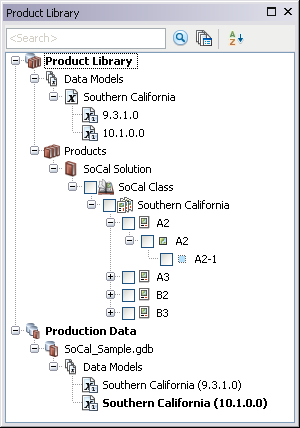
- If necessary, expand Product Library and Products.
-
Navigate to and right-click the solution you want to distribute and click Distribute Solution.
The Distribute Product Library dialog box appears. The source is preset to the location of the current product library.

- Expand the solution and check the check box next to the product classes you want to distribute in the Choose Product Library Component(s) area.
The solution you selected when you clicked Distribute Solution and any product classes that are contained in that solution display in the area. You must have at least one product class selected.
- Click Browse for the Target Product Library Workspace field and navigate to the target or navigate to where you want to store the XML workspace you are creating. You can choose one of the following targets:
- Geodatabase—Allows you to choose an existing product library or any geodatabase. If the geodatabase is not already a product library, you will be prompted to create the workspace. Ensure that you have permissions to create tables in the selected geodatabase.
- Workspace XML—Allows you to create an XML workspace document with the selected information. This XML workspace document can be imported into another product library using the Distribute Product Library tool.
- Click the Config Keyword drop-down arrow and choose an option.
Options vary based on whether the geodatabase is a personal, file, or geodatabase corporativa.
- Click Distribute.
The Distributing Product Library Components dialog box appears with the progress.
- If necessary, click OK when the process completes.
- Haga clic en Cerrar.
The solution, product classes , and any associated files are copied into the target product library or into a new XML workspace document.