For some data models, it is important to ensure that line features are split at the location where two or more features meet. The intersection process can be performed in batch using the Batch Intersects Polylines tool. This tool allows you to split only the selected overlapping polyline features or split only the selected feature classes. When your line feature class has subtypes, you also have the option of choosing to split one subtype only with other features from the subtype or any features from the feature class. For example, if you have a transportation feature class with roads and railroads, you can choose to split road features only where other roads intersect and not where railroads intersect.
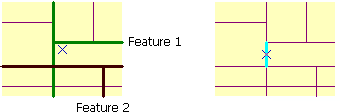
- Start ArcMap.
- If necessary, load data in the map.
- On the main menu, click Customize > Toolbars > Production Editing.
- On the main menu, click Customize > Toolbars > Production Editing Advanced.
- Click the Production Start Editing button
 on the Production Editing toolbar.
- Optionally, select line features to be affected by the Batch Intersects Polylines tool.
- Click the Batch Intersects Polylines button
 on the Production Editing Advanced toolbar.
The Intersects and Splits Polylines dialog box appears.

- Select either the Feature Class or Current Selection option.
- Feature Class—Intersects all the features in the feature classes selected.
- Current Selection—Only intersects the features that are currently selected.
- Ensure that the check boxes are checked next to the names of the feature classes whose lines you want to intersect.
- Select either the All Subtypes or Same Subtype option.
- All Subtypes—Intersects all the features within the feature class regardless of what subtype they are in.
- Same Subtype—Only intersects features if they are in the same subtype in the feature class.
- Click OK.
The Completed message appears when all the features have been processed.
- Haga clic en Aceptar.