The Upgrade Production Database command adds all the components necessary for your geodatabase to perform as a production database. This command is activated if there was an upgrade on the schema and your database is missing tables. It shows an Out of date message and is disabled.
If you are upgrading an geodatabase corporativa, you can only perform the upgrade if you connect as the schema owner for the workspace.
- Start ArcMap.
- If necessary, open the Product Library window by clicking Customize > Production > Product Library on the main menu.
A tree view of the product library appears.
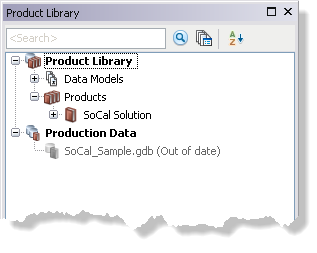
- If necessary, define the product library workspace.
- If necessary, add data from the production database if you don't already have it loaded.
- If necessary, expand Production Data.
- Right-click the database and click Upgrade Production Database.
The Upgrade Production Database Workspace dialog box appears.
- Click the drop-down arrow in the Select Configuration Keyword area and choose an option.
Options may vary based on whether the database is a personal, file, or geodatabase corporativa. For an geodatabase corporativa, you can choose DEFAULTS unless you have configured a different geodatabase configuration keyword.
- DEFAULTS—Stores data up to 1 TB in size; text is stored in UTF8 format.
- TEXT_UTF16—Stores data up to 1 TB in size; text is stored in UTF16 format.
- MAX_FILE_SIZE_4GB—Limits data size to 4 GB; text is stored in UTF8 format.
- MAX_FILE_SIZE_256TB—Stores data up to 256 TB in size; text is stored in UTF8 format.
- Click OK.
The Upgrading Production Database Workspace dialog box appears with the progress.
- Click OK when the process completes.
If the production database supports at least one of the Esri Mapping and Charting solutions, it upgrades the tables that are part of the extension listed in the ToolTip. The production database will also display (Missing Extensions) next to Production Data if the production database supports an Esri Mapping and Charting solution that is not installed.