ArcGIS Desktop

  • Documentación
  • Soporte

  • My Profile
  • Ayuda
  • Sign Out
ArcGIS Desktop

ArcGIS Online

La plataforma de representación cartográfica para tu organización

ArcGIS Desktop

Un completo SIG profesional

ArcGIS Enterprise

SIG en tu empresa

ArcGIS for Developers

Herramientas para crear aplicaciones basadas en la ubicación

ArcGIS Solutions

Plantillas de aplicaciones y mapas gratuitas para tu sector

ArcGIS Marketplace

Obtén aplicaciones y datos para tu organización.

  • Documentación
  • Soporte
Esri
  • Iniciar sesión
user
  • Mi perfil
  • Cerrar sesión

ArcMap

  • Inicio
  • Introducción
  • Cartografiar
  • Analizar
  • Administrar datos
  • Herramientas
  • Extensiones

Modifying the color ramp

The Manage BIS Settings tool allows you to locally set a default color ramp for data visualized in the Explore Bathymetry or Compose Surface windows. For bathymetry data, a color ramp applies a range of colors to the range of depth values associated with a surface model. ArcGIS for Maritime: Bathymetry provides you with standard color ramps used within the bathymetric community.

Nota:

This is a local setting and not a BIS geodatabase setting. Changes made to the color ramp will only be apparent on the machine operating system on which the change was made, and will not affect other users connected to the BIS geodatabase.

  1. Start ArcMap.
  2. On the main menu, click Customize > Toolbars > Bathymetry.
  3. Click the Manage BIS Settings button Manage BIS Settings on the Bathymetry toolbar.

    The Manage BIS Settings dialog box appears. The settings for your active BIS geodatabase are shown in the dialog box.
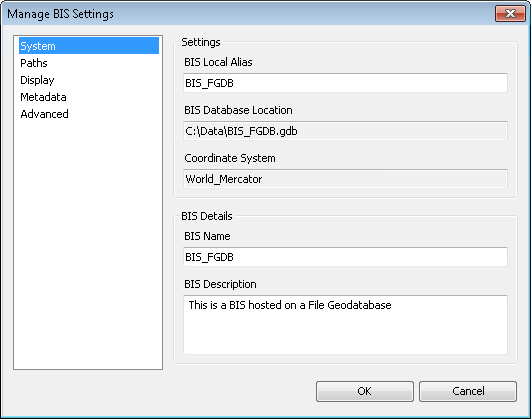
    Manage BIS Settings dialog box
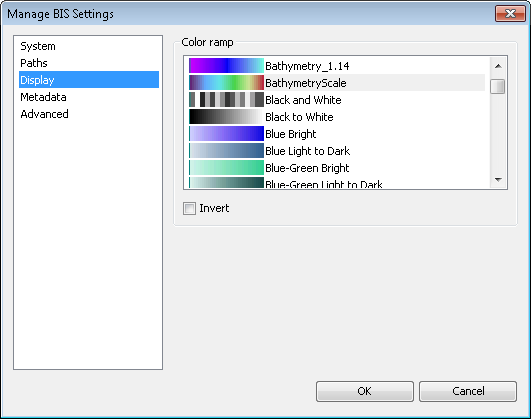
  4. Click the Display pane.
    Manage BIS Settings dialog box Display pane
  5. In the Color Ramp section, choose the color ramp that you want to use to visualize data in the Explore Bathymetry and Compose Surface windows.

    Modifying the color ramp will not automatically update your color ramp in ArcMap, nor will it update thumbnail previews of the data.

    Sugerencia:

    You can quickly sort through the available color ramps by selecting a listed pattern and typing the first letter of the color ramp name. For example, to find a specific blue color ramp, type the letter B multiple times until you find the blue color ramp of your choice.

  6. Optionally check the Invert check box.

    The color ramp pattern will invert for any preview mosaic datasets created after this check box is checked.

  7. Optionally uncheck the Invert check box.

    The original pattern will be used for any preview mosaic datasets created after this check box is checked.

  8. Haga clic en Aceptar.

Temas relacionados

  • Modifying the BIS system settings

ArcGIS Desktop

  • Inicio
  • Documentación
  • Soporte

Plataforma ArcGIS

  • ArcGIS Online
  • ArcGIS Desktop
  • ArcGIS Enterprise
  • ArcGIS for Developers
  • ArcGIS Solutions
  • ArcGIS Marketplace

Acerca de Esri

  • Quiénes somos
  • Empleo
  • Blog interno
  • Conferencia de usuarios
  • Cumbre de desarrolladores
Esri
Díganos su opinión.
Copyright © 2018 Esri. | Privacidad | Legal