You can save a surface model in the Compose Surface window using the Save Surface Model button. This will save the parameters that you used to create a composite surface such as the sorting rules and ordered bathymetric datasets, as well as an optionally-included mosaic dataset.
If you want to save a modified version of an existing surface model, use the Save Surface Model As tool. This is useful if you want to update a surface model you have already saved, either by adding or removing rules or by manually modifying the order of your bathymetric datasets, but don’t want to overwrite the model itself. This allows you the flexibility when saving multiple surface model configurations to apply to your bathymetry datasets.
When you save a surface model, the version is archived within the BIS geodatabase and you can access this version through the Load Surface Model tool. In the Load Surface Model dialog box, you can select the version and load it into the Compose Surface window. Using the Save Surface Model As tool, you can create a new surface model from the older version’s dataset display parameters and then subsequently update the dataset display parameters.
- Start ArcMap.
- On the main menu, click Customize > Toolbars > Bathymetry.
-
Click the Compose Surface button
 on the Bathymetry toolbar.
The Compose Surface window appears.
- Perform one of the following actions to save the surface model:
To save a new surface model
Click the Save Surface Model button
 located at the top of the Compose Surface window.
To save changes to an existing surface model that you have already loaded and want to overwrite
Click the Save Surface Model button
located at the top of the Compose Surface window.To save an existing surface model that you have already loaded but don’t want to overwrite
Click the Save Surface Model As button
 at the top of the Compose Surface window.
The Save Surface Model or Save Surface Model As dialog box appears, depending on which option you chose.
- Type a name for the model in the Model Name text box.
- Optionally type a description for the model in the Model Description text box.
- Optionally check the Create Mosaic Dataset from Model check box.
This will create a mosaic dataset that will honor your surface model rules. This mosaic dataset can be used in surface analysis geoprocessing operations or shared as an image service via ArcGIS Server. Any changes you make to your surface model rules will update the mosaic dataset.
- Click the ellipsis (...) next to the Mosaic Database location text box.
- Navigate to a geodatabase that will store your surface model's mosaic dataset.
This can be your BIS or any geodatabase you want to use.
- In the Name text box, give your surface model's mosaic dataset a name.
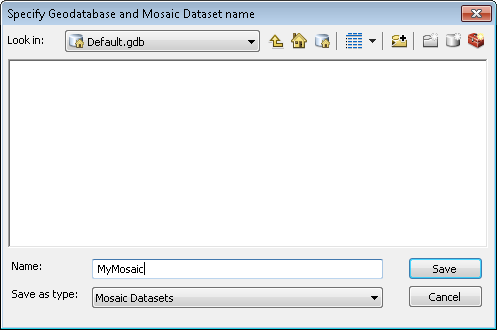
- Haga clic en Guardar.
- Optionally check the Build Overviews for Mosaic Dataset check box.
- Optionally click the ellipsis (...) next to the Model Overviews location text box, and browse to the location where the mosaic dataset overviews will be saved.
- Click Save.
The composite surface is saved and any mosaic dataset information is saved in the specified locations.