ArcGIS Desktop

  • ArcGIS Pro
  • ArcMap

  • My Profile
  • Ayuda
  • Sign Out
ArcGIS Desktop

ArcGIS Online

La plataforma de representación cartográfica para tu organización

ArcGIS Desktop

Un completo SIG profesional

ArcGIS Enterprise

SIG en tu empresa

ArcGIS for Developers

Herramientas para crear aplicaciones basadas en la ubicación

ArcGIS Solutions

Plantillas de aplicaciones y mapas gratuitas para tu sector

ArcGIS Marketplace

Obtén aplicaciones y datos para tu organización.

  • Documentación
  • Soporte
Esri
  • Iniciar sesión
user
  • Mi perfil
  • Cerrar sesión

ArcMap

  • Inicio
  • Introducción
  • Cartografiar
  • Analizar
  • Administrar datos
  • Herramientas
  • Extensiones

Assigning permissions to users

Disponible con licencia de Production Mapping.

Permissions are passed down to all products within a given series. For example, if a user is given permission to one or more series below a particular class or solution, the user has access to those entries. By default, the permissions for a user are set to Not Available, but there are a total of four different levels:

  • Not Available—The series and all components beneath it are hidden from the user.
  • Read Only—Properties can be viewed for all levels of the product library.
  • Check In/Check Out—Files can be checked in and out.
  • Edit—Product library levels can be added, modified, and removed, and files can be checked in and out.
Nota:

This only applies if you are using an geodatabase corporativa as your product library. Personal and file geodatabase permissions are defined by the user's permissions at the operating system level.

  1. Inicie ArcMap.
  2. If necessary, open the Product Library window by clicking Customize > Production > Product Library on the main menu.

    A tree view of the product library appears.
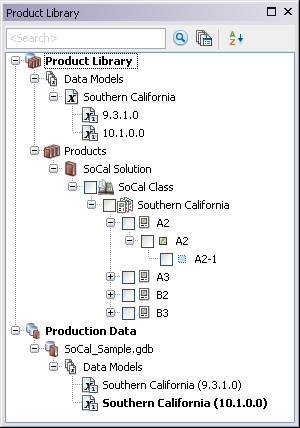
    Product Library tree view
  3. Expand Product Library and Products.
  4. Navigate to the series level of the product class for which you want to assign permissions.
  5. Right-click the series name and click Permissions.

    The Permissions dialog box appears.

    Permissions dialog box
  6. Click the Permissions drop-down arrow for the user to whom you want to grant permissions and choose an option.
  7. Repeat step 6 for all users to whom you want to give permissions.
  8. Haga clic en Aceptar.

Temas relacionados

  • Product library permissions
  • Adding new users to the product library

ArcGIS Desktop

  • Inicio
  • Documentación
  • Soporte

Plataforma ArcGIS

  • ArcGIS Online
  • ArcGIS Desktop
  • ArcGIS Enterprise
  • ArcGIS for Developers
  • ArcGIS Solutions
  • ArcGIS Marketplace

Acerca de Esri

  • Quiénes somos
  • Empleo
  • Blog de Esri
  • Conferencia de usuarios
  • Cumbre de desarrolladores
Esri
Díganos su opinión.
Copyright © 2020 Esri. | Privacidad | Legal