To generate annotation using the Create Feature-Linked Annotation tool, you must have the annotation feature class, as well as the linked source feature class, loaded into the Table Of Contents window. The data frame also needs to be associated with an instance from the product library for which annotation has to be created.
You can also create annotation for a selected set of features instead of the entire feature class.
- Inicie ArcMap.
- Ensure that the correct product library and production database are set.
- Make sure that the Instances Maintained property is set correctly from the Configure context menu on the Product Library window.
- Verify that each annotation feature layer you are creating annotation for has its own matching source feature layer in the document.
- On the main menu, click View > Data Frame Properties.
- Click the General tab.
- Verify that the data frame's reference scale matches that of the given chart.
- Verify that the data frame's rotation matches that of the given chart.
- Verify that the Label Engine is set to Maplex Label Engine.
- Click the Coordinate System tab.
- Verify that the data frame's projection matches that of the given chart.
- Click OK.
- On the main menu, click Customize > Toolbars > Aviation Data Management.
- Click the Feature Display Settings button
 on the Aviation Data Management toolbar.
- On the main menu, click Customize > Toolbars > Aviation Annotation.
- Optionally, select the features for which you want to create annotation.
If no features are selected, annotation will be created within the boundaries of the instances you select in step 11 and for the feature classes you select in step 12.
- Click the Create Feature-Linked Annotation button
 on the Aviation Annotation toolbar.
The Create Feature-Linked Annotation dialog box appears.
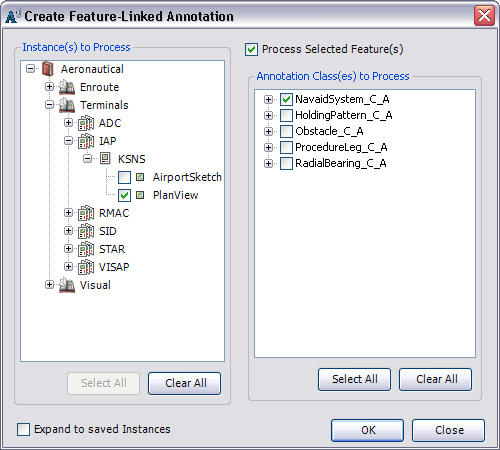
- Check the check boxes next to the instances you want to process.
The list displayed is built from the Instances Maintained set through the Product Library window.
- Check the check boxes next to the annotation classes in the Annotation Class(es) to Process list.
- Optionally, check the Process Selected Feature(s) check box to create annotation for only the features you selected.
- Click OK.
For each feature class that is linked to the annotation feature classes, the tool determines which features do not have annotation in the selected chart. It then creates annotation for those features. It also gives the annotation a MAPID, ensures word spacing is set to 100, changes the color of the background symbol, and resizes arrowheads and accent bar gaps so they are correct for the map scale.
The Create Feature-Linked Annotation Results dialog box appears and shows the results of the annotation that has been generated, updated, or deleted.
- Click Close once you are finished viewing the results.