The Holding Pattern Entry Diagram (HPED) element is a graphical depiction of the holding pattern for a procedure. It is primarily used as a reference for how aircraft should enter a holding pattern.
New HPED elements are created based on the settings on the Holding Pattern Entry Diagram dialog box. These properties determine the default appearance and style of the newly created HPED elements. As the properties are changed, you can also preview the way the HPED is going to look with the modified settings. As needed, the settings can also be reverted to their default values.
However, changing the settings does not alter existing HPED elements. Existing HPED elements can be updated by clicking the Holding Pattern Entry Diagram tool, which will regenerate the HPED element, reflecting updates to the data and/or the settings. The holding pattern portrayed in the HPED element is determined by the HPEntry_Code. The HPEntry_Code value comes from the ProcedureLeg_C feature class.
- Inicie ArcMap.
- On the main menu, click Customize > Production > Production Properties.
The Production Properties dialog box appears.
- Click Aviation Properties in the list on the left side of the Production Properties dialog box.
-
Click the cell next to Holding Pattern Entry Diagram, then click the ellipsis button (...) that appears.
The Holding Pattern Entry Diagram dialog box appears.
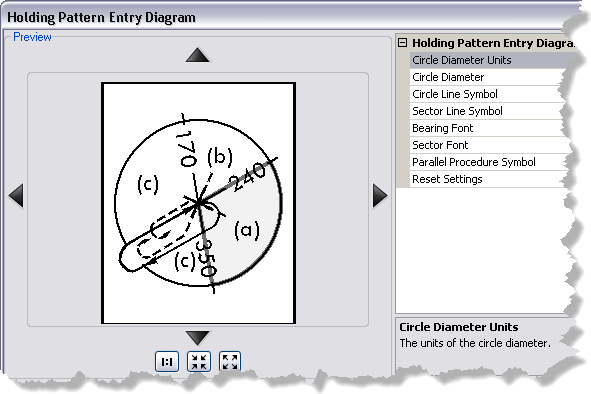
- Click the cell next to Circle Diameter Units, click the drop-down arrow that appears, then choose the unit of measure for the circle diameter.
- Click the cell next to Circle Diameter and type the value you want.
- Click the cell next to Circle Line Symbol, click the ellipsis button (...) that appears, then modify the circle line symbol properties.
- Click the cell next to Sector Line Symbol, click the ellipsis button (...) that appears, then modify the sector line symbol properties.
- Click the cell next to Bearing Font, click the ellipsis button (...) that appears, then modify the bearing font properties.
- Click the cell next to Sector Font, click the ellipsis button (...) that appears, then modify the sector font properties.
- Click the cell next to Parallel Procedure Symbol, click the ellipsis button (...) that appears, then modify the background symbol properties.
- If necessary, click the cell next to Reset Settings, click the drop-down arrow that appears, then choose True if you want to undo all the changes made to the holding pattern entry diagram settings and restore the default settings.
- Click OK to save the settings you have modified.
These settings are applied to the new holding pattern entry diagrams you create in the future unless the settings are modified again.
The Production Properties dialog box appears.
- Haga clic en Aceptar.