Disponible con licencia de Production Mapping.
Instead of overriding the extraction query, you can choose to append a required condition to the original WHERE clause. To append additional required conditions, you would use an AND operator.
For example, if you want to add the map compilation scale as a required condition of the extraction query, you can add
AND M_CSCL = '40000'
to the extraction query that has been created at the product class level. This tells the populator that the features extracted must meet the conditions specified at the product class level as well as have a map compilation scale value of 40000.
- Inicie ArcMap.
- If necessary, open the Product Library window by clicking Customize > Production > Product Library on the main menu.
A tree view of the product library appears.
- Expand Product Library and Products.
- Navigate to the series, product, instance, or area of interest for which you want to append an AND operator to the extraction query.
- Right-click the product, instance, or area of interest and click Properties.
The properties dialog box appears for the series, product, instance, or AOI.
- Click the Extraction pane on the left of the dialog box.
The extraction properties appear. The Settings area is blank.
- Right-click in the Settings table and click Add Record.
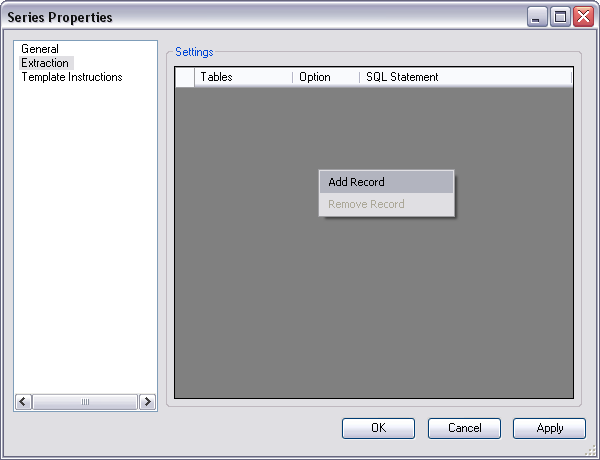
A new row appears in the Settings table.
- Click the drop-down arrow in the Tables cell and choose the name of the table or feature class for which you want to modify the extraction query.
- Repeat steps 7–8 for each table that has a query you want to modify.
- Click the cell to the left of the Tables cell to select an entire row.
- Right-click the rows and choose Product Class Where Clause AND.
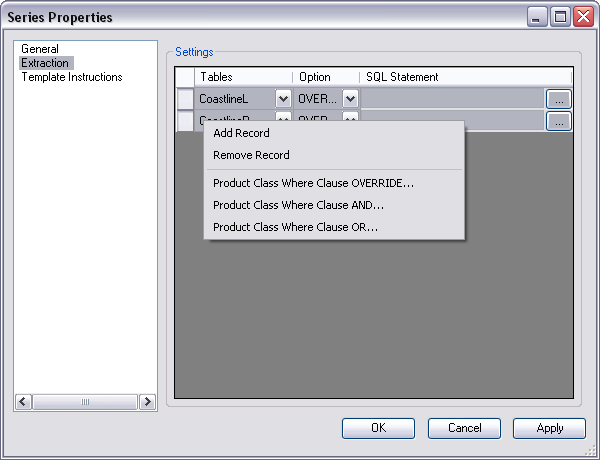
AND appears in the Option cell for the row or rows you have chosen.
- Click the ellipsis (...) in the SQL Statement cell.
The Query Builder dialog box appears.
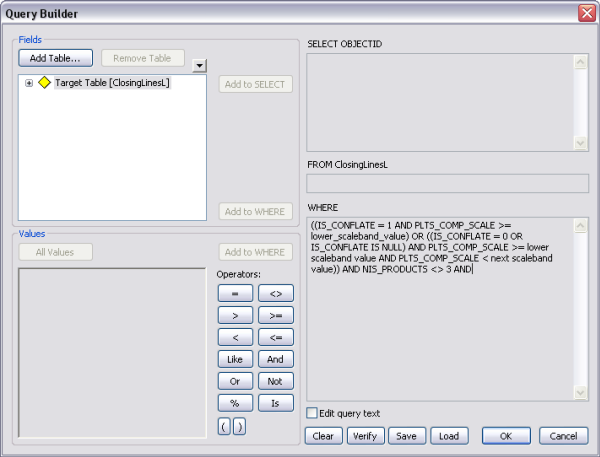
- Check the Edit query text check box.
The query in the WHERE text box becomes editable.
- Place your pointer at the end of the query text and click the AND operator.
- Paste or type the condition you want to add to the extraction query.
- Click OK.
The properties dialog box appears for the series, product, instance, or AOI.
- Repeat steps 12–16 for each extraction query to which you want to append an AND operator.
- Haga clic en Aceptar.