ArcGIS Desktop

  • ArcGIS Pro
  • ArcMap

  • My Profile
  • Ayuda
  • Sign Out
ArcGIS Desktop

ArcGIS Online

La plataforma de representación cartográfica para tu organización

ArcGIS Desktop

Un completo SIG profesional

ArcGIS Enterprise

SIG en tu empresa

ArcGIS Developers

Herramientas para crear aplicaciones basadas en la ubicación

ArcGIS Solutions

Plantillas de aplicaciones y mapas gratuitas para tu sector

ArcGIS Marketplace

Obtén aplicaciones y datos para tu organización.

  • Documentación
  • Soporte
Esri
  • Iniciar sesión
user
  • Mi perfil
  • Cerrar sesión

ArcMap

  • Inicio
  • Introducción
  • Cartografiar
  • Analizar
  • Administrar datos
  • Herramientas
  • Extensiones

Refreshing the map in the Split View window

The Refresh Map tool on the Split View window refreshes the map to match the current ArcMap data frame. This will not update the Table of Contents in the Split View window with changes to the Table Of Contents window in ArcMap; you can do this with the Refresh Table Of Contents tool.

  1. Inicie ArcMap.
  2. On the main menu, click Customize > Toolbars > Defense Mapping.
  3. Click the Split View button Split View on the Defense Mapping toolbar.

    The Split View window appears and contains all the layers in the Table Of Contents window.
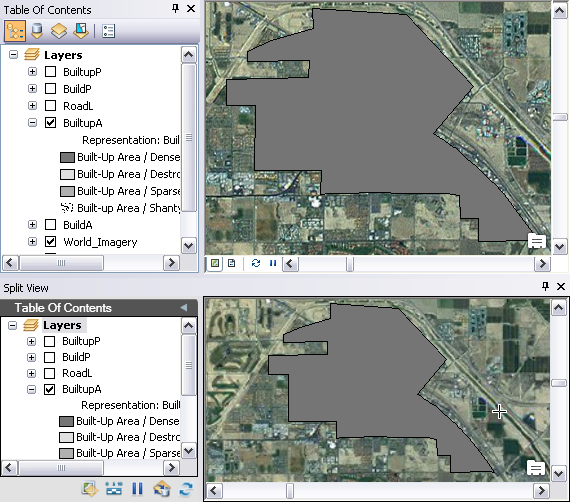
    ArcMap and Split View windows
    Sugerencia:

    You can dock the window anywhere inside of ArcMap or move it to another monitor based on your setup needs.

  4. Click the Refresh Map button Refresh Map on the Split View window.

    The Split View window refreshes to show the changes in the ArcMap data frame.

ArcGIS Desktop

  • Inicio
  • Documentación
  • Soporte

ArcGIS

  • ArcGIS Online
  • ArcGIS Desktop
  • ArcGIS Enterprise
  • ArcGIS
  • ArcGIS Developer
  • ArcGIS Solutions
  • ArcGIS Marketplace

Acerca de Esri

  • Quiénes somos
  • Empleo
  • Blog de Esri
  • Conferencia de usuarios
  • Cumbre de desarrolladores
Esri
Díganos su opinión.
Copyright © 2021 Esri. | Privacidad | Legal