The Units Conversion tool converts elevation and depth attribute values stored in feet and other units to meters. This allows you to attribute features using the units listed on the chart and then convert them in a batch process. Conversion does not overwrite the original values, but moves them to another field.
You can convert attribute values of selected features or features within the Dqyarea extent. To use this tool with a selected set of features, you must select them before opening the tool.
- Inicie ArcMap.
- If necessary, set up the DNC production environment.
- Haga clic en el botón Iniciar edición de producción
 en la barra de herramientas Edición de producción.
- If necessary, select the features with the units you want to convert.
-
Click the Units Conversion button
 on the Nautical DNC toolbar.
The Units Conversion dialog box appears.
- In the selection area, choose one of the following options:
To convert units within selected features
Click Use Selected Features.
To convert units in feature classes within the Dqyarea extent
Click Use Dqyarea.
- If you chose Use Dqyarea, a list of Dqyarea features are displayed with check boxes. Select the Dqyarea features with which you want to define your conversion.
- Click Next.
The Units Conversion dialog box displays selected feature classes containing convertible fields.
- In the Convert area, check the check boxes for the feature classes to be converted.
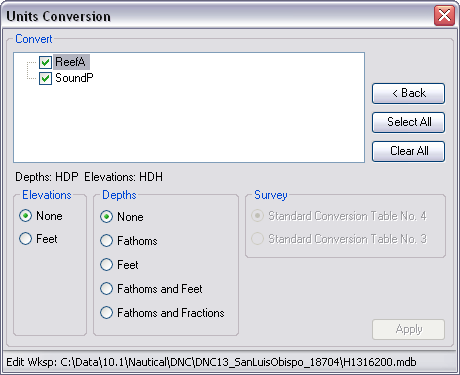
When choosing a conversion method, it will be run on every feature class you have checked.
- If necessary, click a conversion method for elevations.
- None—The elevation units will not be converted.
- Feet— All features with field HDH are converted using Standard Conversion Table 4. All other elevation fields use Standard Conversion Table 1.
- If necessary, click a conversion method for depths.
- None—The depth units will not be converted.
- Fathoms—All depth fields use Standard Conversion Table 3 or 4. This option also enables the Survey conversion options.
- Feet—All depth fields use Standard Conversion Table 3 or 4. This option also enables the Survey conversion options.
- Fathoms and Feet—All depth fields use Standard Conversion Table 3 or 4. This option also enables the Survey conversion options.
- Fathoms and Fractions—All depth fields use conversion guidance provided by NGA.
- If you chose the method Fathoms, Feet or Fathoms and Feet for the depth field, you can choose a conversion method for the survey:
- Standard Conversion Table No. 4—All depth fields use Standard Conversion Table 4.
- Standard Conversion Table No. 3—All depth fields use Standard Conversion Table 3.
- Click Apply to convert the units.
A message appears asking you if you want to view the log file.
- Click Yes to view the log file or No to close the dialog box.