ArcGIS Desktop

  • ArcGIS Pro
  • ArcMap

  • My Profile
  • Ayuda
  • Sign Out
ArcGIS Desktop

ArcGIS Online

La plataforma de representación cartográfica para tu organización

ArcGIS Desktop

Un completo SIG profesional

ArcGIS Enterprise

SIG en tu empresa

ArcGIS Developers

Herramientas para crear aplicaciones basadas en la ubicación

ArcGIS Solutions

Plantillas de aplicaciones y mapas gratuitas para tu sector

ArcGIS Marketplace

Obtén aplicaciones y datos para tu organización.

  • Documentación
  • Soporte
Esri
  • Iniciar sesión
user
  • Mi perfil
  • Cerrar sesión

ArcMap

  • Inicio
  • Introducción
  • Cartografiar
  • Analizar
  • Administrar datos
  • Herramientas
  • Extensiones

Copying and pasting multiple features

The Batch Copy Paste tool allows you to copy and paste an entire selection set of features from different feature classes into their respective feature templates in the edit workspace.

This enhances the original copy and paste functionality by allowing you to paste into multiple templates instead of just one at a time. You can use the Batch Copy Paste tool within the same geodatabase or between multiple geodatabases.

  • Same geodatabase—Copies and pastes selected features within the same geodatabase or edit workspace.
  • Multiple geodatabases—Copies and pastes selected features from multiple geodatabases to the same edit workspace. The source geodatabase, in this case, can still be your edit workspace but can also be from multiple geodatabases loaded into ArcMap.

The copied features are pasted in the same spatial location as the selected features and are now your currently selected set of features.

Nota:

When using the Batch Copy Paste tool, the source layers of your selected features must match the destination edit workspace's target layers schema for the paste operation to take place.

  1. Inicie ArcMap.
  2. Load the data.
  3. En el menú principal, haga clic en Personalizar > Barras de herramientas > Edición de producción.
  4. Haga clic en el botón Iniciar edición de producciónProduction Start Editing en la barra de herramientas Edición de producción.

    Nota:

    Las ventanas Administrar entidades, Crear atributos, Actualizar atributos o Atributos de metadatos aparecen automáticamente al iniciar la sesión de edición con la herramienta Iniciar edición de producción.

    Sugerencia:

    Si las ventanas Crear atributos, Actualizar atributos o Atributos de metadatos no aparecen al iniciar la sesión de edición, haga clic en el botón Mostrar/ocultar atributos Show/Hide Attributes de la ventana Administrar entidades.

  5. On the main menu, click Customize > Toolbars > Nautical.
  6. Select the features in the map to be copied and pasted.

    Features must be selected for the tool to run.

  7. Click the Batch Copy Paste button Batch Copy/Paste on the Nautical toolbar.

    The Batch Copy Paste dialog box appears.
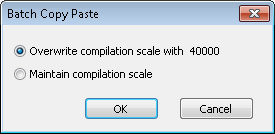
    Batch Copy Paste dialog box

  8. Choose an option for the compilation scale setting.
    • Overwrite compilation scale with—All the pasted features will have the currently set compilation scale value.
    • Maintain compilation scale—The compilation scale value for the pasted features will remain the same as it was in the source before being pasted.

    A process dialog box appears.

    Nota:

    If there are any destination feature tables or features not in the table of contents, you will be asked if you want to add them to the display.

    When the process is complete, the Batch Copy Paste dialog box appears asking if you want to view the log file.

  9. Click Yes to view the log file, or click No if you do not want to view the log file.

    Nota:

    Log files are written to <Installation location>\Users\<UserLogin>\AppData\Roaming\ESRI\Production <version>\Desktop\Desktop\Maritime Charting\LogFiles\Batch Copy Paste.

    If the location doesn't exist, the tool creates the log folder for it. The log file is saved in XML format.

ArcGIS Desktop

  • Inicio
  • Documentación
  • Soporte

ArcGIS

  • ArcGIS Online
  • ArcGIS Desktop
  • ArcGIS Enterprise
  • ArcGIS
  • ArcGIS Developer
  • ArcGIS Solutions
  • ArcGIS Marketplace

Acerca de Esri

  • Quiénes somos
  • Empleo
  • Blog de Esri
  • Conferencia de usuarios
  • Cumbre de desarrolladores
Esri
Díganos su opinión.
Copyright © 2021 Esri. | Privacidad | Legal