ArcGIS Desktop

  • ArcGIS Pro
  • ArcMap

  • My Profile
  • Ayuda
  • Sign Out
ArcGIS Desktop

ArcGIS Online

La plataforma de representación cartográfica para tu organización

ArcGIS Desktop

Un completo SIG profesional

ArcGIS Enterprise

SIG en tu empresa

ArcGIS Developers

Herramientas para crear aplicaciones basadas en la ubicación

ArcGIS Solutions

Plantillas de aplicaciones y mapas gratuitas para tu sector

ArcGIS Marketplace

Obtén aplicaciones y datos para tu organización.

  • Documentación
  • Soporte
Esri
  • Iniciar sesión
user
  • Mi perfil
  • Cerrar sesión

ArcMap

  • Inicio
  • Introducción
  • Cartografiar
  • Analizar
  • Administrar datos
  • Herramientas
  • Extensiones

Deleting notes

The Notes Editor tool allows you to delete notes. This includes deleting a note for multiple selected features within the same feature class. Deleting a note detaches it from a feature; it does not delete the note from the note tables in the DNC geodatabase. Unless you want to change a note for all its associated features, it is recommended that you add a new note to a feature and delete the unwanted note from it.

  1. Inicie ArcMap.
  2. If necessary, set up the DNC production environment.
  3. Haga clic en el botón Iniciar edición de producciónProduction Start Editing en la barra de herramientas Edición de producción.

    Nota:

    Las ventanas Administrar entidades, Crear atributos, Actualizar atributos o Atributos de metadatos aparecen automáticamente al iniciar la sesión de edición con la herramienta Iniciar edición de producción.

    Sugerencia:

    Si las ventanas Crear atributos, Actualizar atributos o Atributos de metadatos no aparecen al iniciar la sesión de edición, haga clic en el botón Mostrar/ocultar atributos Show/Hide Attributes de la ventana Administrar entidades.

  4. Select features that have notes you want to delete.
  5. Click the Notes Editor button Notes Editor on the Nautical DNC toolbar.

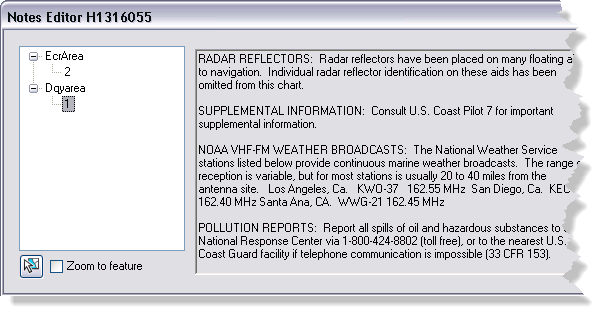
    The Notes Editor dialog box appears.

    The Notes Editor dialog box
    Nota:

    If no features are selected, the Notes Editor dialog box displays no data.

    Precaución:

    If the table of contents contains layers from more than one workspace, a message informs you that the Notes Editor dialog box displays notes from the source workspace of the topmost feature layer in the table of contents. If you have started editing, the Notes Editor dialog box uses the note tables from the edit workspace.

  6. Click a feature ID in the tree on the left side of the Notes Editor dialog box to view notes associated with that feature.

    Nota:

    If the feature has no notes, the Notes Editor dialog box displays No notes attached to this feature.

  7. To delete a note, use one of the following options:

    To delete a note for a single feature

    Right-click the feature in the tree with notes you want to delete and click Add\Edit Note.

    To delete a note for multiple features

    Right-click the feature class in the tree with notes you want to delete and click Add\Edit Note.

    A check box list and a text box become visible in the Notes Editor dialog box.
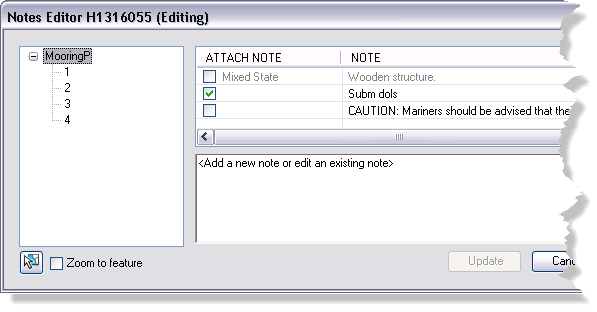
    Nota:

    When working with an entire feature class, if a note exists and it is not attached to each selected feature, that specific note will be shown as ‘Mixed State’ in the Notes Editor dialog box and will be unavailable. If a note exists and it is attached to each selected feature, the note’s check box is checked. If a note exists and it is not attached to any of the selected features, the note’s check box is unchecked.

    Notes Editor
  8. In the list in the Notes Editor dialog box, find the note you want to delete.
  9. Uncheck the check box for the note you want to delete.
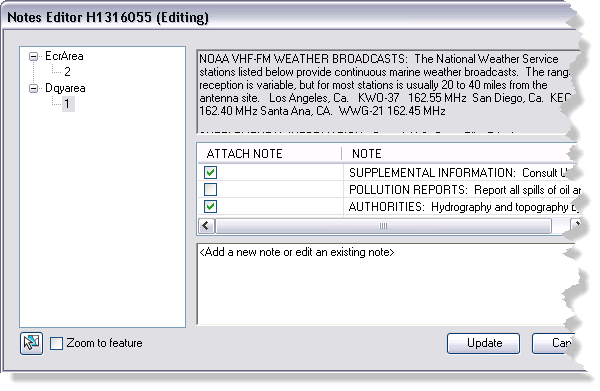
    Example of unchecking a note

  10. Click Update.

    For a single feature, the note is removed from the list in the top text box of the Notes Editor dialog box. For multiple features, the note in question is unchecked. The note still appears in the list, because it has been detached from the feature, not removed from the DNC geodatabase's note tables.

  11. Click Cancel to exit note edit mode.

ArcGIS Desktop

  • Inicio
  • Documentación
  • Soporte

ArcGIS

  • ArcGIS Online
  • ArcGIS Desktop
  • ArcGIS Enterprise
  • ArcGIS
  • ArcGIS Developer
  • ArcGIS Solutions
  • ArcGIS Marketplace

Acerca de Esri

  • Quiénes somos
  • Empleo
  • Blog de Esri
  • Conferencia de usuarios
  • Cumbre de desarrolladores
Esri
Díganos su opinión.
Copyright © 2021 Esri. | Privacidad | Legal