ArcGIS Desktop

  • ArcGIS Pro
  • ArcMap

  • My Profile
  • Ayuda
  • Sign Out
ArcGIS Desktop

ArcGIS Online

La plataforma de representación cartográfica para tu organización

ArcGIS Desktop

Un completo SIG profesional

ArcGIS Enterprise

SIG en tu empresa

ArcGIS Developers

Herramientas para crear aplicaciones basadas en la ubicación

ArcGIS Solutions

Plantillas de aplicaciones y mapas gratuitas para tu sector

ArcGIS Marketplace

Obtén aplicaciones y datos para tu organización.

  • Documentación
  • Soporte
Esri
  • Iniciar sesión
user
  • Mi perfil
  • Cerrar sesión

ArcMap

  • Inicio
  • Introducción
  • Cartografiar
  • Analizar
  • Administrar datos
  • Herramientas
  • Extensiones

Adding columns to item to column footers

Disponible con licencia de Production Mapping.

The Add > Columns To > Footer option allows you to add more than one column at a time.

  1. Verify that you are in layout view if necessary.
  2. Right-click the graphic table element and click Properties.

    The Table Properties dialog box appears.

  3. Click the Table Format tab if necessary.

    The Table Format dialog box appears.

  4. Click Table Design.

    A Table Design dialog box appears, depending on the table format.

  5. Click a cell in the Table Layout area.
  6. Click Table Layout > Add > Columns To > Footer.

    Sugerencia:

    You can also right-click a cell in the Table Layout area and click Add > Columns To > Footer.

    The Add Columns to Footer dialog box appears.
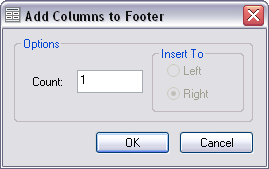
    Add Columns to Footer dialog box
  7. Type the number of columns to add in the Count text box.
  8. Click OK.

Temas relacionados

  • What is a graphic table element?
  • A quick tour of the graphic table element

ArcGIS Desktop

  • Inicio
  • Documentación
  • Soporte

ArcGIS

  • ArcGIS Online
  • ArcGIS Desktop
  • ArcGIS Enterprise
  • ArcGIS
  • ArcGIS Developer
  • ArcGIS Solutions
  • ArcGIS Marketplace

Acerca de Esri

  • Quiénes somos
  • Empleo
  • Blog de Esri
  • Conferencia de usuarios
  • Cumbre de desarrolladores
Esri
Díganos su opinión.
Copyright © 2021 Esri. | Privacidad | Legal