Disponible con licencia de Production Mapping.
When products are created in the product library, map documents are also created for them by default. However, there can be instances where you have already set up a document that you want to associate with a product. For instance, a blank .mxd file is created when you add the JOG product, but you may already have an existing .mxd file that could be used.
- Inicie ArcMap.
- If necessary, open the Product Library window by clicking Customize > Production > Product Library on the main menu.
A tree view of the product library appears.

- Expand Product Library and Products.
- Navigate to the product whose .mxd file you want to change.
- Right-click the product and click Properties.
The Product Properties dialog box appears for the product.
- Click the plus sign next to MxD to view the properties.

- Click the cell next to File and delete the existing text.
- Click the ellipsis (...) in the cell.
The Browse For File dialog box appears.
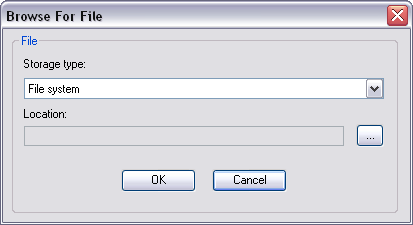
- Click the Storage type drop-down arrow and choose an option:
- File system—If the file is stored in a local or network computer
- Database—If the file is stored in a database
- Click the ellipsis (…) next to the Location field.
The Open dialog box appears.
- Navigate to the .mxd file you want to associate.
- Click Open.
The Browse For File dialog box appears with the path to the .mxd file in the Location field.
- If necessary, type a description for the .mxd file in the Description text box.
- Click OK.
The Product Properties dialog box appears.
- Haga clic en Aceptar.